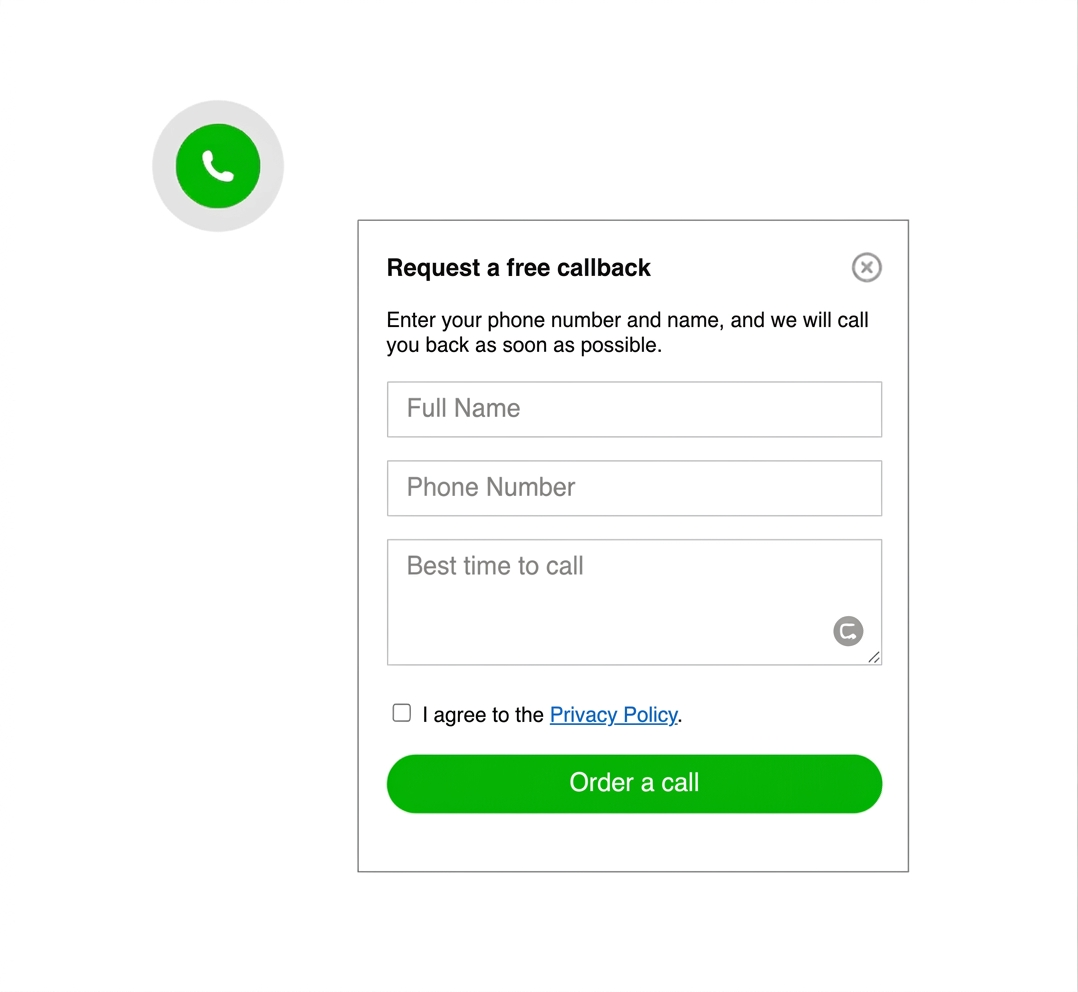
HOW TO ADD A NO-CODE MESSENGER WIDGET TO YOUR WEBSITE

A practical setup guide for one clean messaging launcher

To add a no-code messenger widget to your website, choose the messenger path you want visitors to use, place one supported widget snippet or embed on the site, test the launcher on mobile and desktop, and keep the contact flow simple enough that people know exactly where to tap or click.

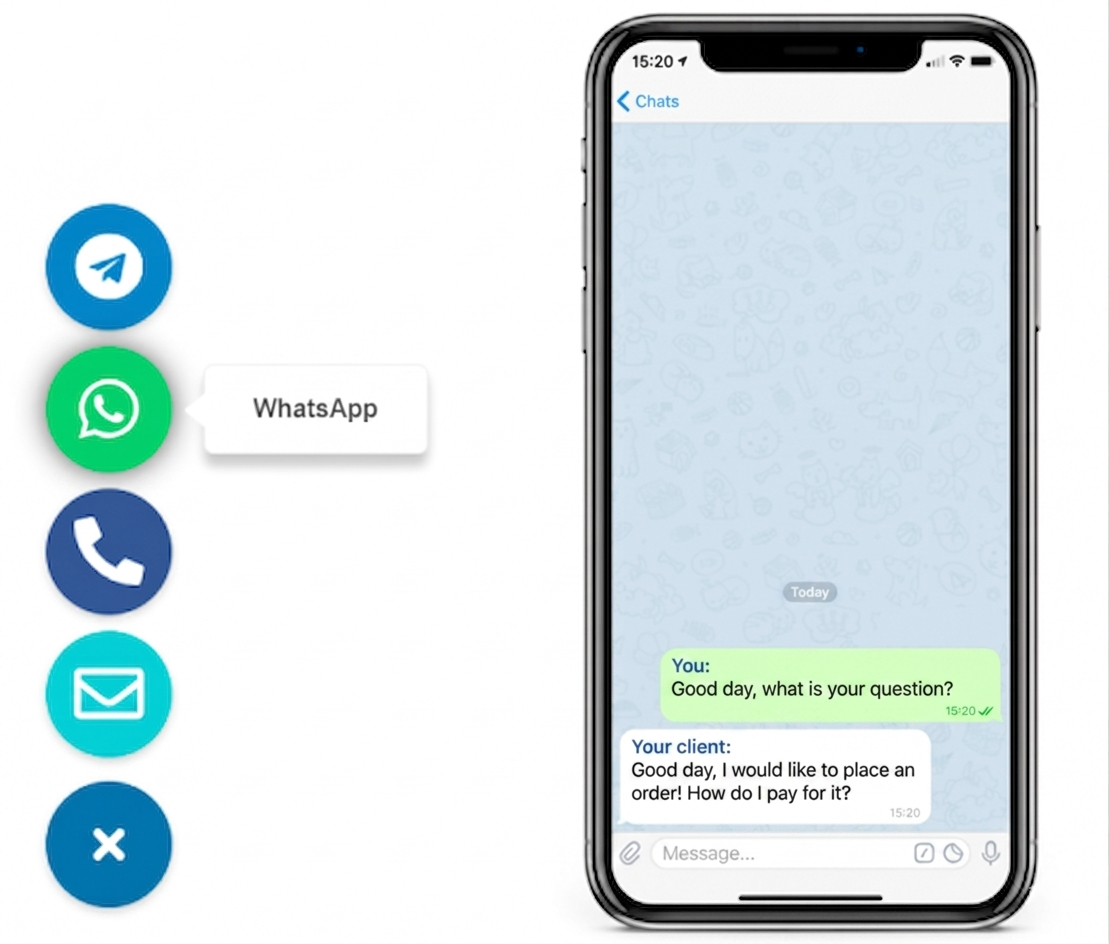
This guide is for small businesses, freelancers, agencies, and website owners who want one visible contact launcher, no-code setup, better page cleanliness than stacking separate buttons, and a faster path to the first message.
No-code messenger widget shown on a website with a clean contact launcher
Messenger widget preview with one compact launcher for website visitors

WHY THIS MATTERS

because one compact widget can shorten the path from page interest to first message

A no-code messenger widget helps when you want direct contact without redesigning the site or scattering separate buttons across the layout. Instead of pushing visitors to hunt for contact details, you give them one clear launcher where buying or booking intent is already high.

If you want several individual launchers instead of one widget, compare this page with How to add messenger buttons to a website. If your primary route is WhatsApp, the closest focused guide is How to add a WhatsApp button to a website.

NO-CODE SETUP
Yes, you can add a messenger widget without coding
Code snippet for a no-code messenger widget setup
one supported install method is usually enough

Most websites can launch a messenger widget with one hosted snippet, app embed, or custom HTML block placed through the platform's normal editing flow. You do not need a custom rebuild if the site already supports code injection, footer snippets, or embedded blocks.

Messenger options grouped inside one website widget
STEP BY STEP

How to add a no-code messenger widget step by step

  1. Decide which messenger path the widget should open first, such as WhatsApp, Telegram, or one compact multi-messenger panel.
  2. Choose the install path your platform supports, such as a script snippet, app embed, footer injection field, or HTML block.
  3. Add the widget to pages where visitors are most ready to contact you, usually the homepage, service pages, pricing, and contact page.
  4. Adjust the position so the launcher stays visible without covering forms, sticky bars, cookie notices, or mobile navigation.
  5. Test the live widget on desktop and a real phone before publishing it across the full site.
  6. Keep one fallback option, such as a contact form or contact page, for longer or more structured enquiries.
Fast launch icon for a no-code messenger widget

Fast to launch

A well-chosen messenger widget is often live in one editing session instead of turning into a longer redesign or plugin cleanup project.
Placement icon for a no-code messenger widget

Easy to place

The widget should stay visible without hiding main CTA buttons, sticky bars, forms, or checkout-related UI.
Mobile-friendly icon for a no-code messenger widget

Mobile-friendly

Most first-contact visits happen on mobile, so the tap target and spacing should be reviewed there first.
Platform compatibility icon for a no-code messenger widget

Platform-safe

The cleanest setup should stay consistent across WordPress, Shopify, Wix, Webflow, Joomla, and plain HTML sites.

Platform guidance for no-code messenger widget setup

The cleanest install path depends on how the site is managed, but the goal stays the same: place one messenger widget reliably, keep the layout stable, and avoid turning a simple contact action into a heavier rebuild.

WordPress: use a snippet area, custom code field, or footer injection path when you want predictable placement without stacking several widget plugins.

Shopify: use the supported app embed or theme injection route, then check the widget against floating cart and other sticky sales UI.

Wix: use the platform's supported embed or custom code option and make sure the widget does not cover booking, menu, or sticky mobile actions.

Webflow and HTML sites: a direct script insert is often the simplest workflow because you control the placement and publishing path yourself. See also Messenger Widget for Webflow and HTML Sites.

Joomla: add the widget through template-level code placement so behavior stays stable across templates and page layouts.

Platform checklist
  • WordPress: prefer one snippet over stacking several button plugins
  • Shopify: confirm the widget does not clash with floating cart UI
  • Wix: keep the widget visible without covering booking elements
  • Webflow: publish and re-check the live page, not only the designer preview
  • HTML sites: place the script once in the shared template or footer
  • Joomla: verify template output after publishing
  • All platforms: test the final position on a real phone
Related guides

If you want a broader no-code comparison after this page, continue with Simple Contact Widget for a Website Without a Plugin or browse more setup examples in the YourChat blog.

PLACEMENT AND UX GUIDANCE

Give the visitor one obvious next step

A no-code messenger widget should reduce hesitation, not create another decision tree. The stronger setup is usually the one that shows the best contact path quickly, matches the page intent, and respects the primary conversion action already on the screen.

Bottom right is still the strongest default for many websites, but the best position is the one that stays visible without blocking forms, sticky buy bars, cookie notices, or mobile navigation. Start with homepage, service pages, and pricing pages before rolling out site-wide.

Messenger widget example on a phone screen

PLACEMENT NUMBERS

Where the widget should live on the page
Review the widget on a real phone, keep it away from sticky elements, and make sure the launcher feels like a helpful shortcut instead of a screen obstacle.

1

PRIMARY MESSENGER PATH

3

HIGH-INTENT PAGES TO START

5

MINUTES TO CHECK ON MOBILE
Floating messenger widget layout with clean placement
Keep the contact path short and obvious

three common ways to launch a messenger contact path

WHICH ONE FITS THIS USE CASE

Option 1

PLUGIN

when the CMS insists

A plugin can work when the CMS strongly prefers plugins, but it often adds more settings, more updates, and more design inconsistency than a basic messenger launcher really needs.
use when direct code placement is limited

Option 3

BUTTONS

for channel-first layouts

best when each app needs its own CTA
Separate messenger buttons still make sense when each channel needs its own landing-page role, but they usually take more space and create more visual competition than one compact widget.

messenger widget vs plugin vs separate buttons

If your goal is fast first contact with less maintenance, a no-code messenger widget is usually the strongest middle ground. It is lighter than a plugin-first approach and cleaner than placing several competing messenger buttons around the page.
A plugin still has a place when the CMS makes custom code difficult. Separate buttons still have a place when each messenger needs its own dedicated CTA. The cleaner setup is usually one widget plus one fallback contact page, not multiple overlapping contact systems.
OBJECTION HANDLING

You do not need a full help desk to launch a messenger widget
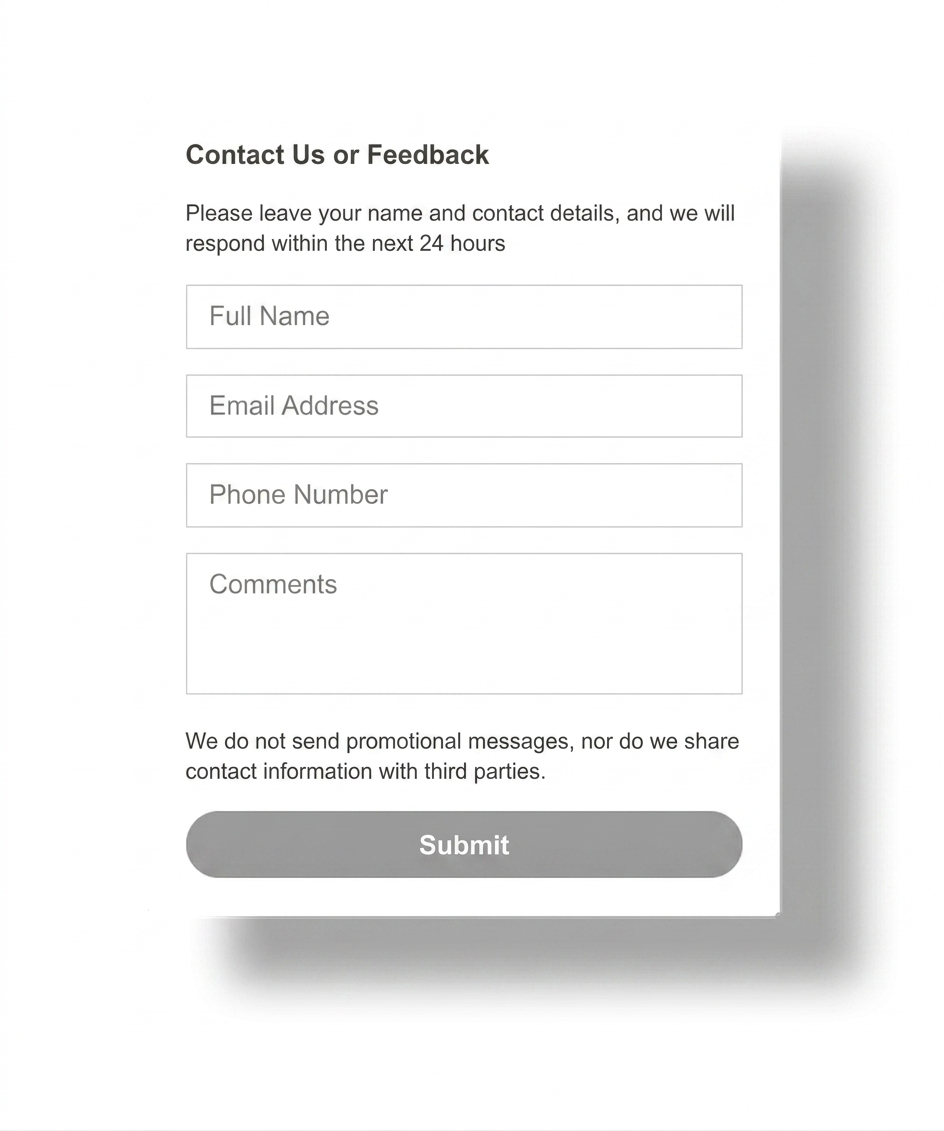
A no-code messenger widget is often enough when the real goal is to start more first conversations. You only need heavier support tooling when you have an active support workflow, agent routing, or a larger service operation.
For many business websites, the cleaner answer is straightforward: let the widget handle quick contact and keep your contact page or form as the backup for detailed requests.
Messenger widget compared with heavier support tools
Common mistakes when adding a no-code messenger widget to a website
COMMON MISTAKES TO AVOID

Do not let the widget fight the page

keep it useful, not intrusive

  • Do not add several overlapping plugins, widgets, and floating buttons at the same time.
  • Do not place the widget over forms, checkout controls, sticky bars, or cookie prompts.
  • Do not skip live testing after publishing on a real mobile device.
  • Do not choose a support-heavy tool if you only need a clean first-contact path.
  • Do not open too many messenger choices if one primary route is already clear.
QUICK CHECKLIST

Before you publish, confirm the widget stays clean in both setup and visitor experience.

  • One clear messenger path or compact widget panel
  • Install path chosen before adding another plugin
  • Visible on the pages where visitors are ready to contact you
  • Tested on mobile without overlap
  • Fallback contact page or form kept for longer requests

Frequently asked questions about adding a no-code messenger widget

How do I add a no-code messenger widget to my website?

Choose the messenger path you want to show, add one widget snippet or supported embed to the site, place it where visitors can see it, and test it on mobile and desktop before publishing widely.

Can I add a no-code messenger widget without coding?

Yes. Most websites can add a widget through a code injection field, app embed, footer snippet area, or custom HTML block without custom development.

Will a messenger widget work on mobile and desktop?

Yes, as long as you test final placement on both screen sizes and make sure the widget does not cover navigation, forms, sticky bars, or cookie notices.

Should I use a script, plugin, or app embed for a messenger widget?

Use the lightest method your platform supports. Scripts are often the most flexible cross-site choice, while plugins or app embeds make more sense when the platform prefers that workflow.

Is a messenger widget better than separate messenger buttons?

Usually yes when you want one compact launcher and a cleaner layout. Separate buttons still make sense when each messenger needs its own dedicated CTA or landing-page role.

Do I need a plugin to add a messenger widget?

Usually no. A plugin is only necessary when the platform strongly prefers it or blocks direct code placement. On many sites, one script or embed is enough.

Need more setup examples after this page? Browse the English blog guides or compare with What Is a Messenger Widget?.

a no-code messenger widget can work on almost any website

If your site allows a code snippet, custom HTML block, app embed, or footer injection, you can usually launch a messenger widget without changing the full page structure. That keeps the setup practical for teams that want cleaner contact and fewer CMS moving parts.