HOW TO ADD WHATSAPP BUTTON TO WEBSITE

A practical pillar guide built on the same YourChat layout

Learn how to place a WhatsApp button on your site, where it should appear, what setup works best, and how to launch it without rebuilding your page layout

Use this page as a step-by-step overview before you place your first button or widget script.
Preview of a floating WhatsApp button and website chat widget layout
WhatsApp chat button widget preview for a website

WHY ADD A WHATSAPP BUTTON TO YOUR WEBSITE

because visitors prefer a direct and familiar contact channel

A WhatsApp button removes friction from your contact flow. Instead of forcing people into a form or a traditional live chat popup, you send them straight into a conversation they already know how to use.
simple setup path
You do not need to redesign the site to add it
Code snippet used to add a WhatsApp button to a website
add one script once, then control the button from your account

That is the cleanest way to add a WhatsApp button without custom development. Your page structure stays intact while the contact layer is managed separately.

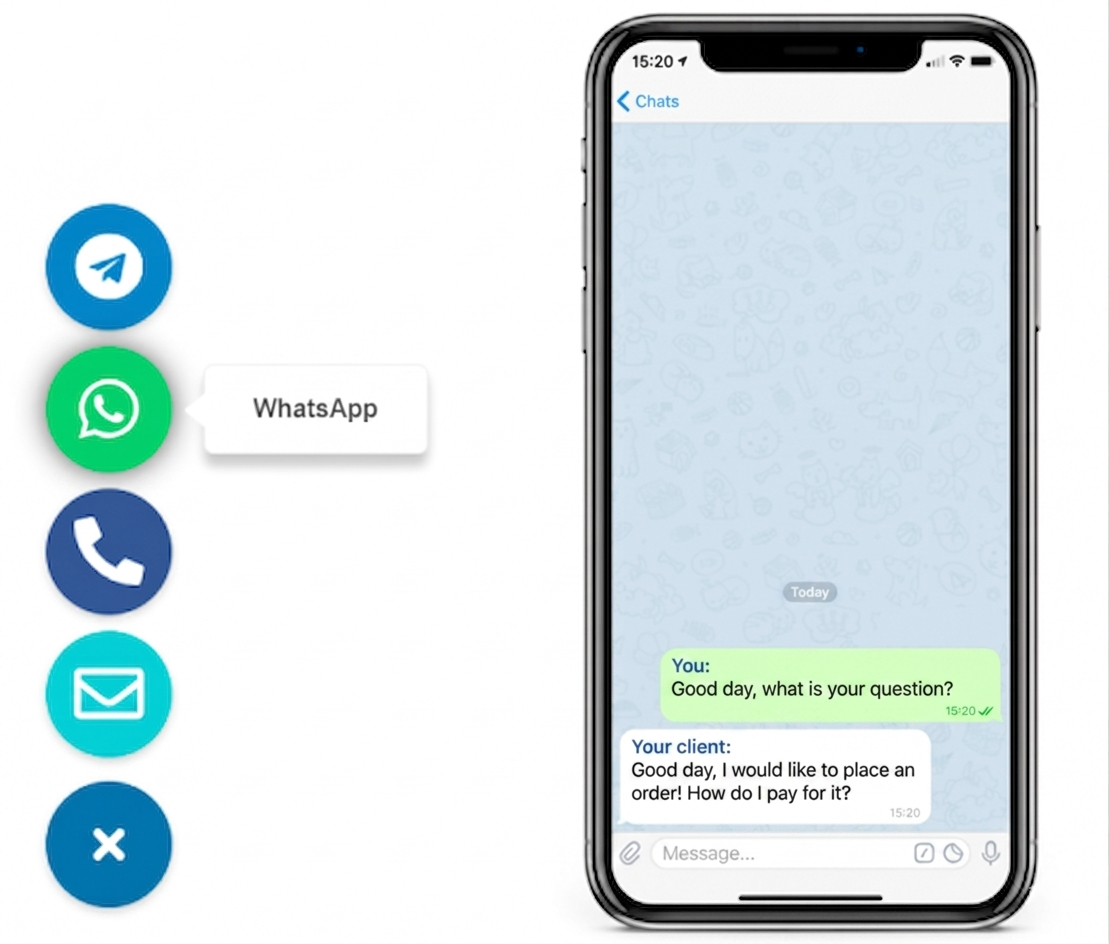
Messenger button options for a website including WhatsApp and Telegram
STEP BY STEP

How to add a WhatsApp button in a few practical steps

Create the widget, connect your WhatsApp destination, choose the placement, and copy the generated script.

Then place that script on your website once and test the button on both desktop and mobile.
Fast setup icon for adding a WhatsApp button to a website

Familiar for visitors

People are more likely to message you when the contact option already feels natural on their phone.
Customization icon for a floating WhatsApp chat widget

Clean placement

A good WhatsApp button should stay visible without covering key content or distracting from the page.
Mobile-friendly icon for a website WhatsApp button

Mobile and desktop ready

Check the final position on both screen sizes because a button that works on desktop can still clash with mobile UI.
Compatibility icon for WhatsApp button setup on CMS platforms

Works across CMS platforms

If your site lets you insert a script or code snippet, this setup usually works on WordPress, Joomla, Shopify, Webflow, Wix, and custom HTML sites.

How to add a WhatsApp button on WordPress, Joomla, or an HTML site

The setup path changes a little depending on the platform, but the commercial intent stays the same: you want a WhatsApp contact button or floating chat widget live fast, without coding a custom solution.

For WordPress, the easiest route is usually a hosted widget script placed through theme settings, a header-footer code field, or a lightweight snippet tool.

For Joomla, the same logic applies: place the script in the template or custom code area and test the final mobile position.

For an HTML website, setup is often simplest of all because you can insert the code directly before the closing body tag and publish.

Platform checklist
  • WordPress: add script without relying on a bloated plugin
  • Joomla: keep the widget outside your content editor flow
  • HTML site: place one script and keep the page layout unchanged
  • All platforms: test the floating button on a real phone

WHAT THIS PAGE COVERS

Adding the button is only one part of getting it right

The real result depends on the contact flow, placement, visibility, and whether the visitor reaches the right WhatsApp destination with as little friction as possible.
Example of a floating WhatsApp chat button on a website

PLACEMENT AND BEHAVIOR

Where the button should live on the page
The bottom-right corner is usually the strongest default, but the real rule is simpler: keep the button visible, do not hide key content, and make sure it behaves correctly on mobile.

1

PRIMARY CTA POSITION

1

SCRIPT TO INSTALL

5

MINUTES TO LAUNCH
Floating website button layout with WhatsApp and other messenger options
Keep the click path short and obvious

three common ways to add a WhatsApp button

WHICH OPTION FITS YOUR SITE BEST

Option 1

LINK

basic manual setup

Use a direct WhatsApp link if you only need a bare minimum contact shortcut and do not care about styling, visibility rules, or broader widget controls.
fastest to publish, weakest for presentation and control

Option 3

PLUGIN

depends on platform

CMS-specific
Use a plugin or app only when your platform strongly prefers it. This can work well, but maintenance and design quality vary a lot from one ecosystem to another.

WhatsApp button vs live chat widget

This is one of the highest-value comparison intents on the page. A live chat widget is useful when you need agents, routing, and a support workflow. A WhatsApp button for website use is usually better when your real goal is simple: let prospects message you fast from a channel they already trust.
For small business owners, freelancers, and agencies, the lighter option often wins. A floating WhatsApp button is easier to launch, easier to maintain, and usually closer to the setup intent behind searches like best WhatsApp widget for website or WhatsApp chat widget for small business.
extra lead capture layer

Add a fallback for visitors who do not use WhatsApp

Not every visitor wants to open a messenger. A secondary contact form keeps the page useful for email-first leads and longer enquiries.
This is especially useful on service pages where users may want to explain their case in more detail before starting a chat.
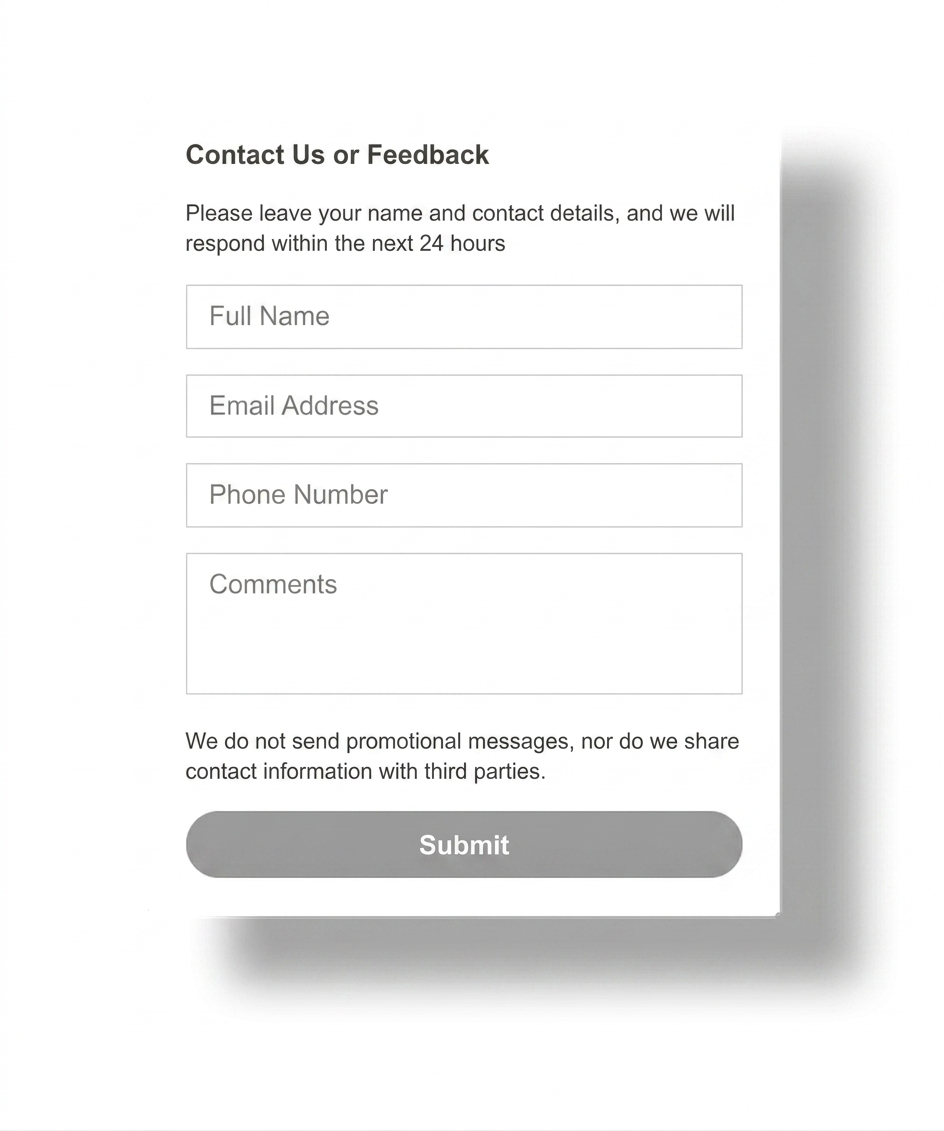
Website contact form as a fallback next to a WhatsApp button setup
QUICK CHECKLIST

Before publishing, confirm the button opens the correct WhatsApp destination, does not overlap other sticky elements, and stays usable on both desktop and mobile.

Best pages to place the button on

Homepage

Use it here when first-time visitors often need a quick question answered before they continue browsing.

Service pages

High-intent pages are often the strongest place for a WhatsApp button because the visitor is already considering action.

Contact page

If your contact page already collects leads, adding WhatsApp gives people a faster alternative without replacing the existing path.

Frequently asked questions about WhatsApp website buttons

Can I add a WhatsApp button to my website without coding?

Yes. In most cases, a hosted widget or script-based setup is the easiest no-code route. You place one snippet, then manage the button from the widget dashboard.

What is the best place for a floating WhatsApp button?

The bottom-right corner is the default choice on most sites, but the best position is the one that stays visible without overlapping cookie notices, sticky bars, or important content.

Is a WhatsApp chat widget good for small business websites?

Usually yes. Small businesses often benefit from direct messaging more than from a heavy live chat tool because the owner or manager can reply quickly in a familiar app.

Should I use a plugin or a script?

If your platform allows custom code, a script-based widget is usually cleaner. Use a plugin only when the platform strongly pushes you in that direction or when you need a platform-specific workflow.

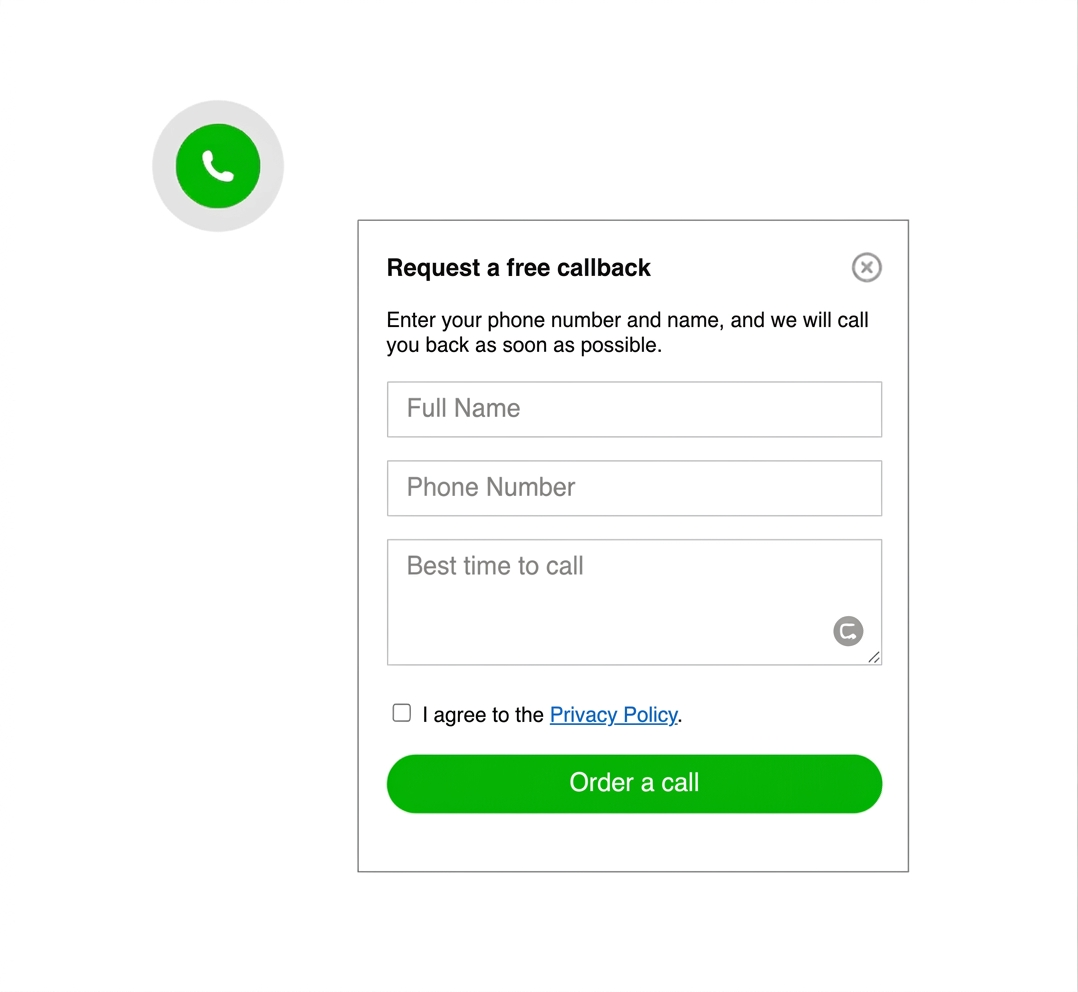
Callback widget example shown as an alternative contact option on a website
common mistakes to avoid

Do not let the button fight the page

keep it visible, but never intrusive

avoid overlapping cookie bars, sticky buy buttons, and important form fields

The most common mistake is not technical. It is poor placement. If the button blocks content, jumps on mobile, or opens the wrong contact route, people lose trust and stop clicking.

this setup works with almost any website

If your platform lets you insert a script, custom HTML, or a footer snippet, you can usually add a WhatsApp button without rebuilding the page. That includes custom sites, simple HTML landers, and common CMS platforms.