HOW TO ADD MESSENGER BUTTONS TO WEBSITE

A practical pillar guide built on the same YourChat layout

To add messenger buttons to a website, use one hosted widget or script, connect the channels you actually want to offer, place the button where it stays visible, and test the final behavior on mobile and desktop before publishing.

This guide is for website owners who want WhatsApp, Telegram, or other messaging options available from one clean contact entry point without rebuilding the page.
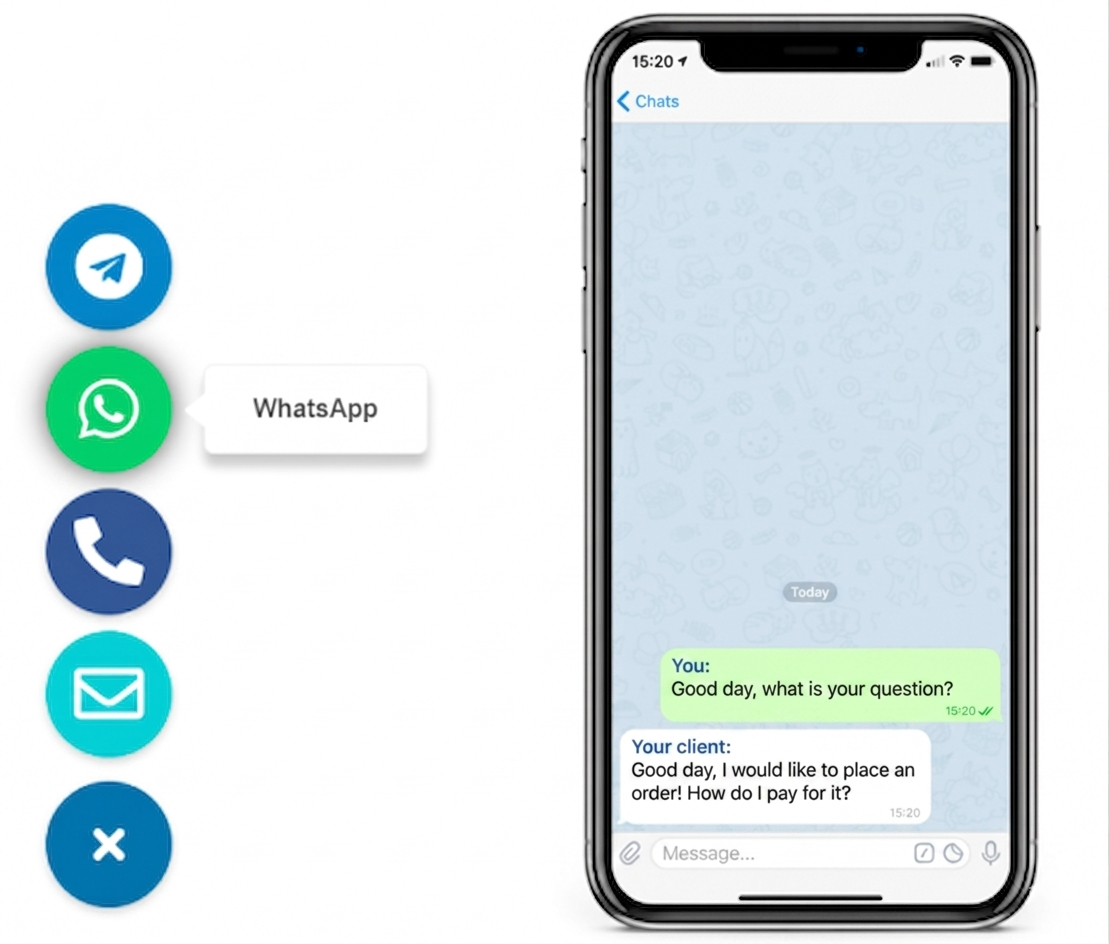
Preview of a multi-messenger button widget layout on a website
Messenger buttons widget preview for a website

WHY ADD MESSENGER BUTTONS TO YOUR WEBSITE

because different visitors already prefer different contact channels

Messenger buttons reduce friction in your contact flow by letting people choose the app they already trust. Instead of forcing every lead into one form or one live chat tool, you offer a faster path to conversation while still keeping the page visually clean.
simple setup path
You do not need to rebuild the page to add messenger buttons
Code snippet used to add messenger buttons to a website
add one script once, then control each messenger from one contact layer

That is the cleanest way to add multiple contact buttons without custom development. Your page structure stays intact while the messaging layer is managed separately and can be updated without editing the whole page again.

Messenger button options for a website with multiple contact channels
STEP BY STEP

How to add messenger buttons in a few practical steps

Create the widget, connect the messenger destinations you want to offer, choose the placement, and copy the generated script.

Then place that script on your website once and test the button set on both desktop and mobile so visitors reach the right contact route immediately.
Fast setup icon for adding messenger buttons to a website

More than one preferred channel

People are more likely to message you when they can choose the app they already use, then continue the conversation on the same device or later on desktop.
Customization icon for a multi-messenger website widget

Clean placement

A good messenger button set should stay visible without covering key content, cookie notices, or the main CTA. Fewer choices usually perform better than a crowded menu.
Mobile-friendly icon for website messenger buttons

Mobile and desktop ready

Check the final position on both screen sizes because a button that works on desktop can still clash with mobile UI, sticky bars, or consent banners. Multi-button widgets need extra spacing discipline.
Compatibility icon for messenger button setup on CMS platforms

Works across CMS platforms

If your site lets you insert a script or code snippet, this setup usually works on WordPress, Shopify, Wix, Webflow, Joomla, and custom HTML sites without building a separate integration for every app.

How to add messenger buttons on WordPress, Shopify, Wix, Webflow, Joomla, or an HTML site

The setup path changes a little depending on the platform, but the goal stays the same: get one clean messenger entry point live fast, without building separate custom solutions for each channel.

For WordPress, a hosted widget script placed through theme settings, a header-footer code field, or a lightweight snippet tool is usually cleaner than stacking several plugins.

For Shopify and Wix, use the platform's custom code area or app embedding option, then preview the button in a product page and on mobile checkout-related screens so it does not hide conversion elements.

For Webflow and Joomla, place the script in the project or template code area and confirm the widget does not conflict with other fixed-position components.

For an HTML website, setup is often simplest because you can insert the code directly before the closing body tag and keep the rest of the layout untouched.

Platform checklist
  • WordPress: add one script instead of multiple button plugins
  • Shopify and Wix: test product and high-intent pages before publishing
  • Webflow and Joomla: keep the widget outside your content editor flow
  • HTML site: place one script and keep the page layout unchanged
  • All platforms: test the floating button set on a real phone

WHAT THIS PAGE COVERS

The best setup is not the biggest set of buttons

The real result depends on channel choice, placement, visibility, and whether the visitor reaches the right destination with as little friction as possible. A smaller, clearer choice set usually wins.

Need channel-specific help after this page? Compare the WhatsApp button guide, the Telegram button guide, or browse the YourChat blog.

Example of a floating multi-messenger button widget on a website

PLACEMENT AND BEHAVIOR

Where the messenger buttons should live on the page
The bottom-right corner is usually the strongest default, but the real rule is simpler: keep the widget visible, limit the number of choices, and make sure the buttons behave correctly on mobile.

3

MAX CHANNELS TO SHOW

1

SCRIPT TO INSTALL

5

MINUTES TO LAUNCH
Floating website button layout with multiple messenger options
Keep the click path short and the channel choice obvious

three common ways to add messenger buttons

WHICH OPTION FITS YOUR SITE BEST

Option 1

LINK

basic manual setup

Use direct links if you only need a bare minimum contact shortcut and do not care about styling, visibility rules, or broader widget controls. This is the lightest but least polished option.
fastest to publish, weakest for presentation and control

Option 3

PLUGIN

depends on platform

CMS-specific
Use a plugin or app only when your platform strongly prefers it. This can work well, but maintenance, performance, and design quality vary a lot from one ecosystem to another.

Messenger buttons vs live chat widget

A live chat widget is useful when you need agents, routing, and a support workflow. Messenger buttons are usually better when your real goal is simpler: let prospects message you fast in the app they already trust.
For small business owners, freelancers, and agencies, the lighter option often wins. A multi-channel button set is easier to launch and easier to maintain when you need only a few contact paths, not a full help desk layer.
If one channel matters more than the others, keep it visually dominant. You can compare the WhatsApp setup guide and Telegram setup guide for channel-specific decisions.
extra lead capture layer

Add a fallback for visitors who do not want messaging

Not every visitor wants to open a messenger. A secondary contact form keeps the page useful for email-first leads and longer enquiries.
This matters even more when you offer several channels, because some visitors will still prefer a plain written enquiry instead of starting a chat.
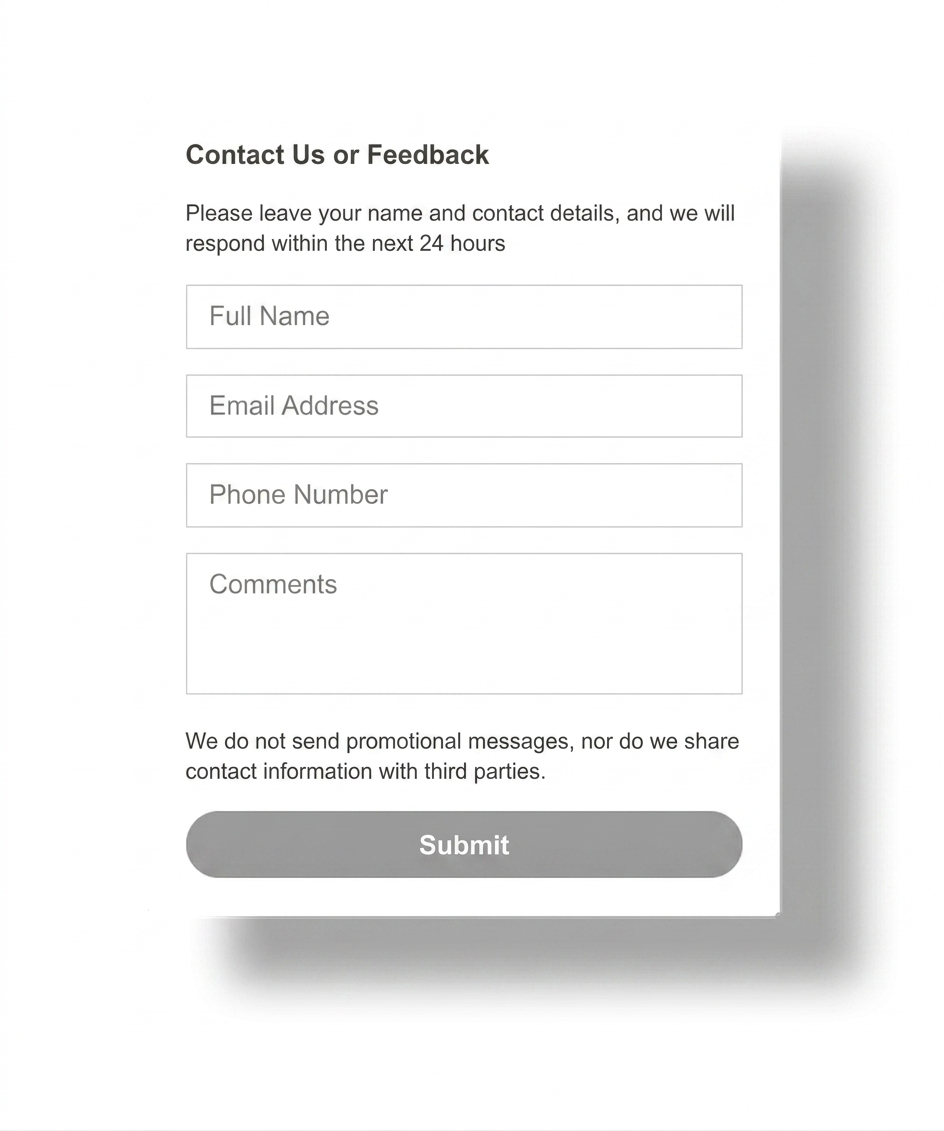
Website contact form as a fallback next to messenger button setup
QUICK CHECKLIST

Before publishing, confirm every button opens the correct channel, the main messenger appears first, the widget does not overlap other sticky elements, and the final layout stays usable on both desktop and mobile.

Best pages to place messenger buttons on

Homepage

Use them here when first-time visitors often need a quick question answered before they continue browsing, but keep the widget compact so it does not overpower the hero.

Service pages

High-intent pages are often the strongest place for messenger buttons because the visitor is already considering action and may simply prefer one app over another.

Contact page

If your contact page already collects leads, adding messenger buttons gives people a faster alternative without replacing the existing path.

Frequently asked questions about website messenger buttons

Can I add messenger buttons to my website without coding?

Yes. In most cases, a hosted widget or script-based setup is the easiest no-code route. You place one snippet, then manage multiple messenger buttons from the widget dashboard without rebuilding the whole page.

What is the best place for messenger buttons on a website?

The bottom-right corner is the default choice on most sites, but the best position is the one that stays visible without overlapping cookie notices, sticky bars, or important content.

Should I use one messenger button or several?

Use several only when your audience really uses different channels. Too many choices can lower clicks, so most small business sites should feature two or three messenger options at most.

Should I use a plugin or a script for messenger buttons?

If your platform allows custom code, a script-based widget is usually cleaner. Use a plugin only when the platform strongly pushes you in that direction or when you need a platform-specific workflow.

Will messenger buttons work on mobile and desktop?

They should, but you need to test both layouts. A button can look fine on desktop and still clash with mobile sticky bars, cookie notices, or the viewport edge.

Can I combine WhatsApp and Telegram in the same widget?

Yes. A combined widget works well when your audience uses more than one messenger and you want one consistent floating contact entry point instead of separate scattered buttons.

Need more platform-specific ideas after this page? Continue in the blog guides or compare the WhatsApp setup article and Telegram setup article.

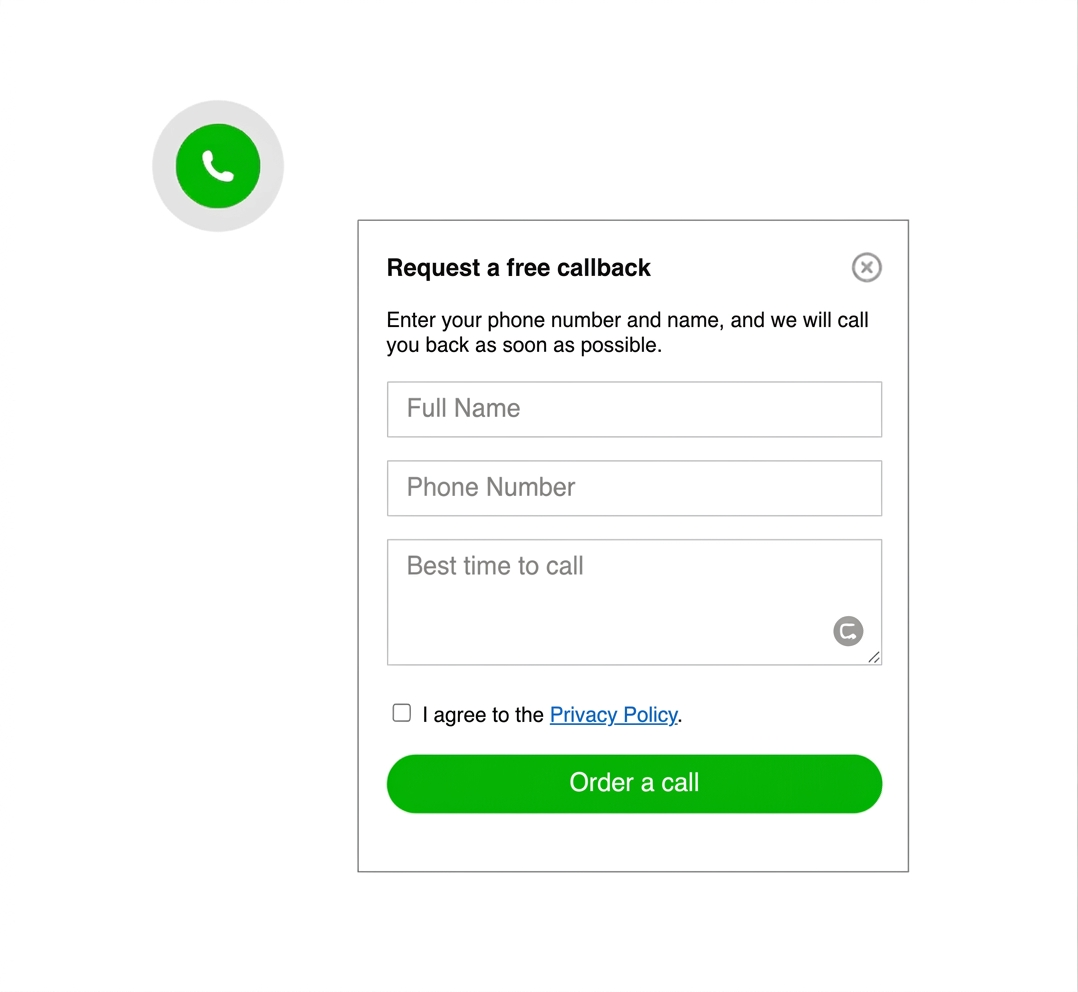
Callback widget example shown as an alternative contact option on a website
common mistakes to avoid

Do not let the button fight the page

keep it visible, but never intrusive

avoid overlapping cookie bars, sticky buy buttons, important form fields, and too many channel choices

The most common mistake is not technical. It is poor prioritization. If the widget blocks content, jumps on mobile, or offers too many equally weighted channels, people lose trust and stop clicking.

this setup works with almost any website

If your platform lets you insert a script, custom HTML, or a footer snippet, you can usually add messenger buttons without rebuilding the page. That includes custom sites, simple HTML landers, and common CMS platforms.