
WHAT IS A MESSENGER WIDGET FOR A WEBSITE?
A practical definition guide for website owners
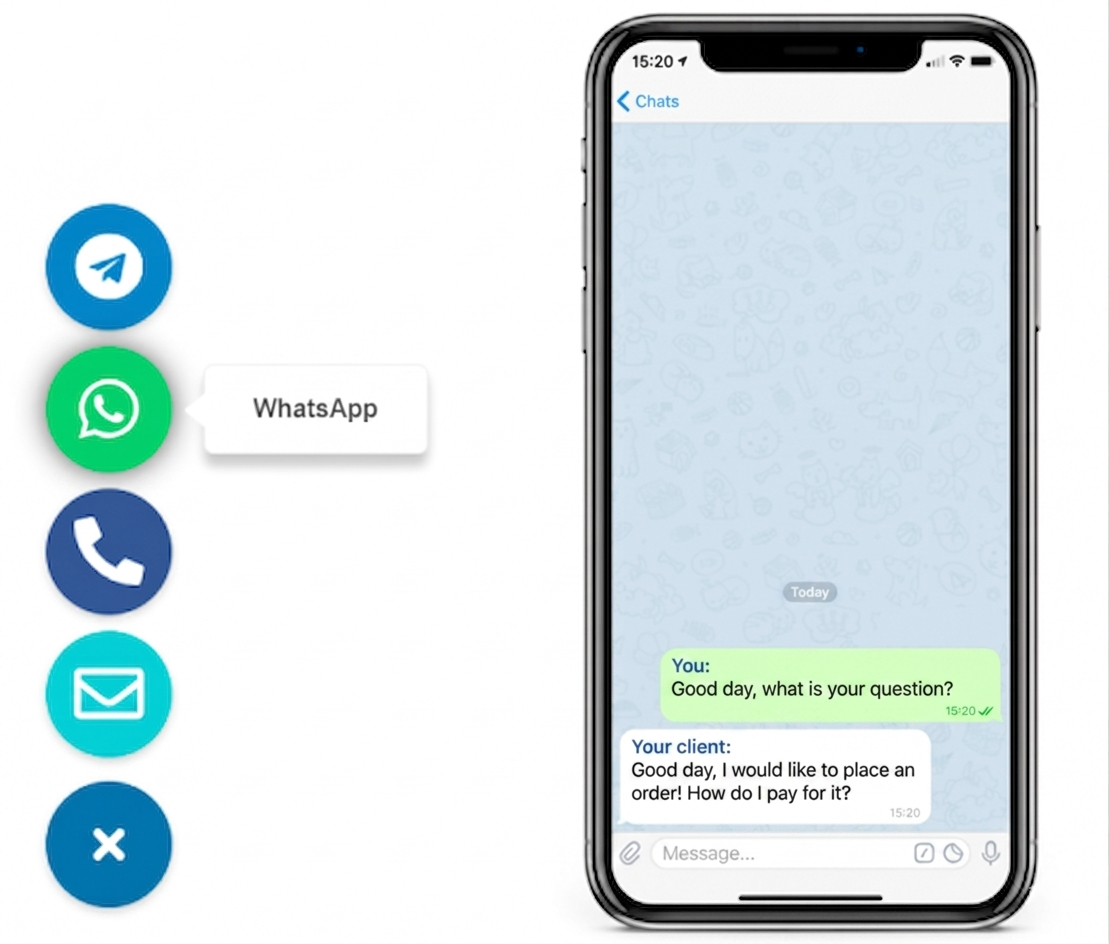
A messenger widget for a website is a small floating contact element that lets visitors open one or more messaging options from any page. Instead of searching for contact details, they can start a conversation in one tap.
This guide explains what a messenger widget is, who it suits, how it works, and how to launch one without turning your website into a crowded contact layer.

WHY THIS MATTERS
it shortens the path between interest and first contact
Many websites bury contact details in headers, footers, or long forms. A messenger widget keeps one clear entry point visible while the visitor is still ready to ask a question, request a quote, or check availability.
If you want a broader commercial comparison after this definition, continue with Best Website Messenger Widget for Simple Customer Contact or the setup-oriented messenger buttons guide.
NO-CODE SETUP
You can add a messenger widget without rebuilding the website

one shared script is often enough
On many platforms, a messenger widget is added through one script or snippet placed in a footer injection field, custom code section, or shared template. That is why it often fits no-code or low-code teams better than rebuilding page layouts by hand.

How a messenger widget is usually set up
- Choose the main messaging path you want visitors to use first.
- Decide whether the widget should open one channel or a short list of options.
- Add the widget script once at site or template level.
- Place it where it stays visible but does not block forms, CTA buttons, or consent prompts.
- Test the widget on desktop and on a real phone.
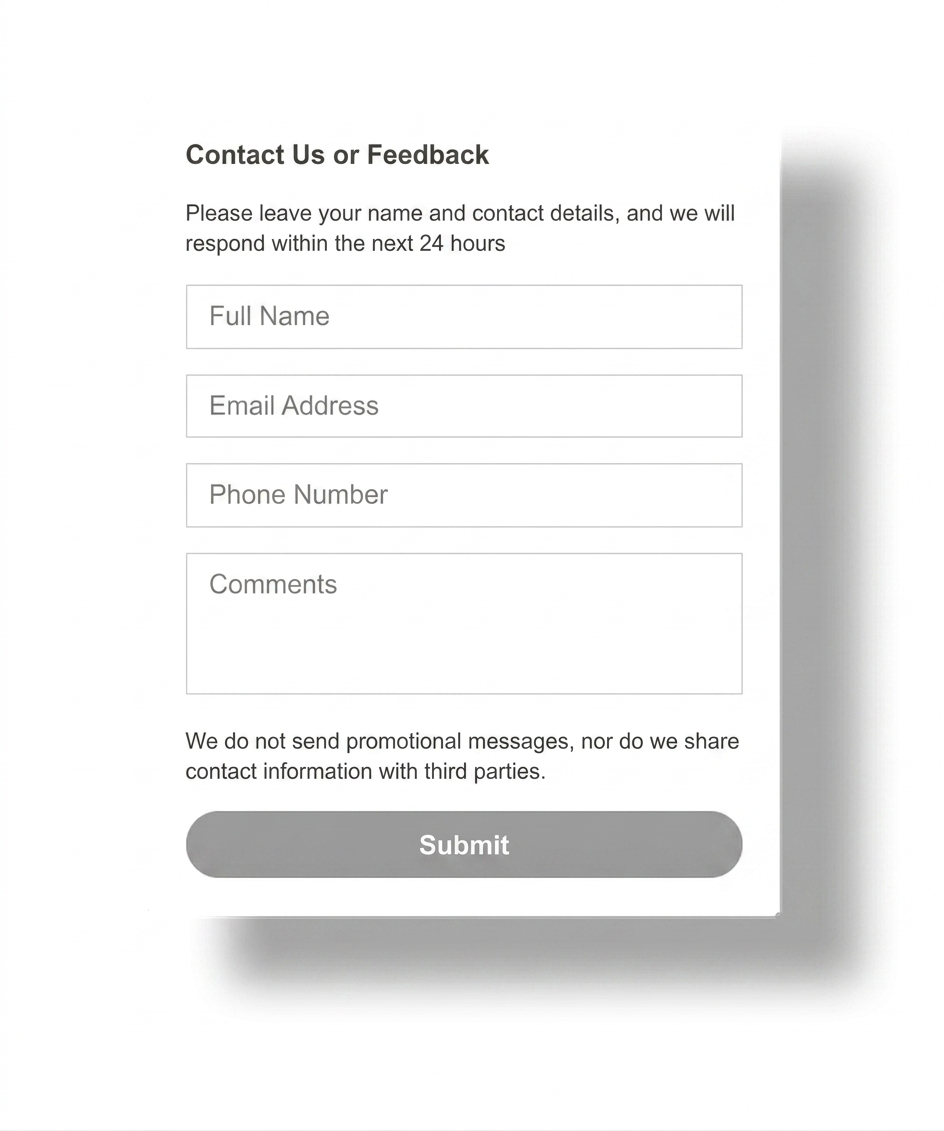
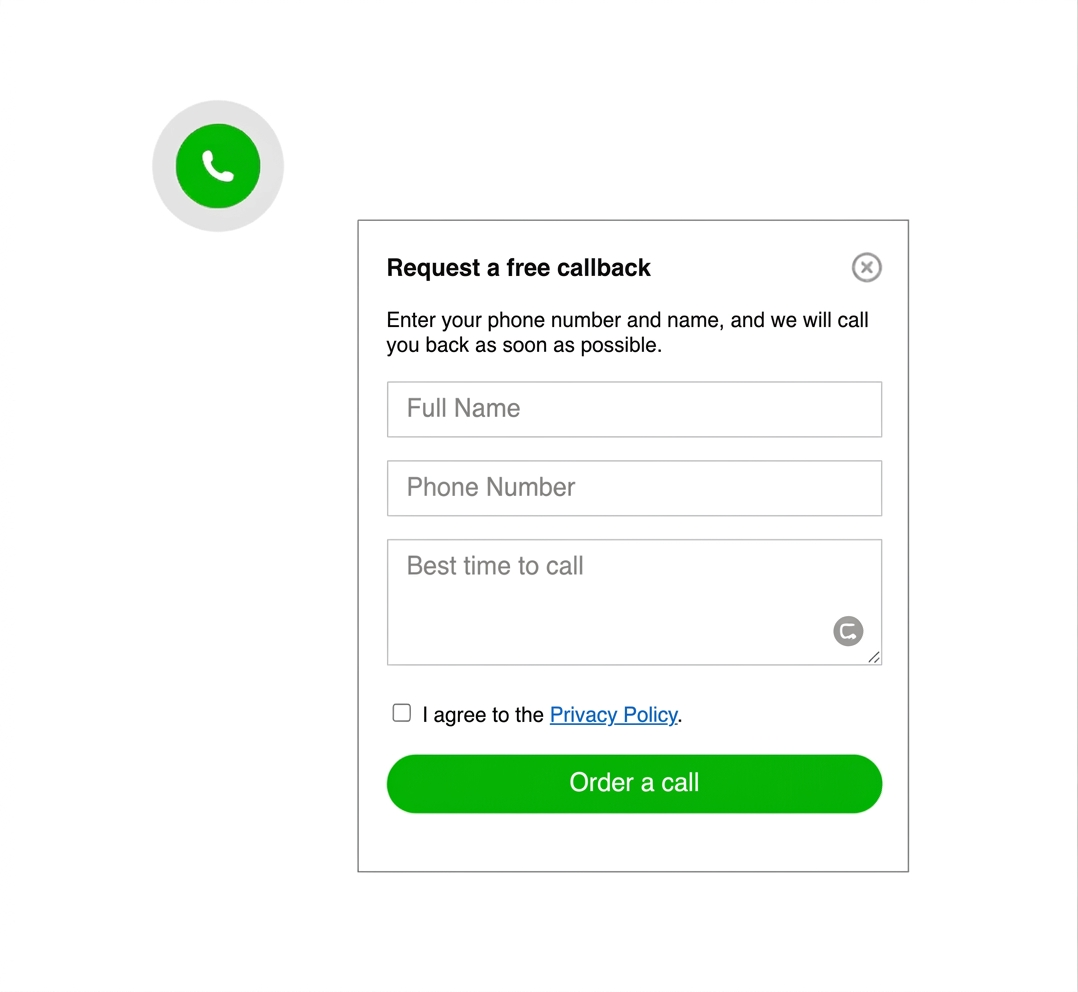
- Keep a fallback path such as a contact form for long or structured requests.

Quick to publish
A messenger widget should be simple to launch across your main pages, not a long rebuild project.

Clear placement
The widget should stay visible without sitting over other conversion elements.

Mobile ready
A messenger widget only helps if it remains easy to tap on a small screen.

Platform safe
A lightweight widget is easier to maintain across WordPress, Shopify, Wix, Webflow, Joomla, and plain HTML sites.
PLACEMENT AND UX GUIDANCE
A messenger widget should help the page, not fight it
For most business websites, the best default placement is a floating launcher in the lower corner. The key is keeping it visible without hiding forms, pricing CTA buttons, menus, or legal notices.
If the widget opens several channels, keep the first view short and obvious. If you mainly need one channel, compare this article with the WhatsApp button setup guide or Telegram Button for Website.

WHAT IT TYPICALLY INCLUDES
Most messenger widgets combine three simple ideas
They give the visitor one obvious launcher, open one channel or a short list of options, and stay available across the site without forcing the visitor to restart the page journey.
1
2
3

Keep the first click obvious
COMMON MISTAKES
The widget should not become a crowded contact menu
A messenger widget is supposed to reduce friction. It stops helping when it opens too many channels, overlaps your page CTA, or feels like a support dashboard on a site that only needs a simple contact shortcut.
Keep the primary action obvious. Leave long project intake or support routing to other parts of the site when needed.
CHECK BEFORE YOU PUBLISH
Quick checklist for a useful messenger widget
- One clear primary messaging action
- No overlap with forms, sticky bars, or cookie banners
- Easy tap target on mobile
- Only real channels your team actually monitors
- Fallback path for detailed requests
- Tested on homepage and high-intent pages