
FLOATING CONTACT BUTTON FOR SQUARESPACE WEBSITES
A floating contact button for Squarespace is usually added through sitewide code injection or a global embed, then positioned so visitors can message you without losing the page context. The best version stays visible, opens the right contact path, and does not fight Squarespace mobile UI.

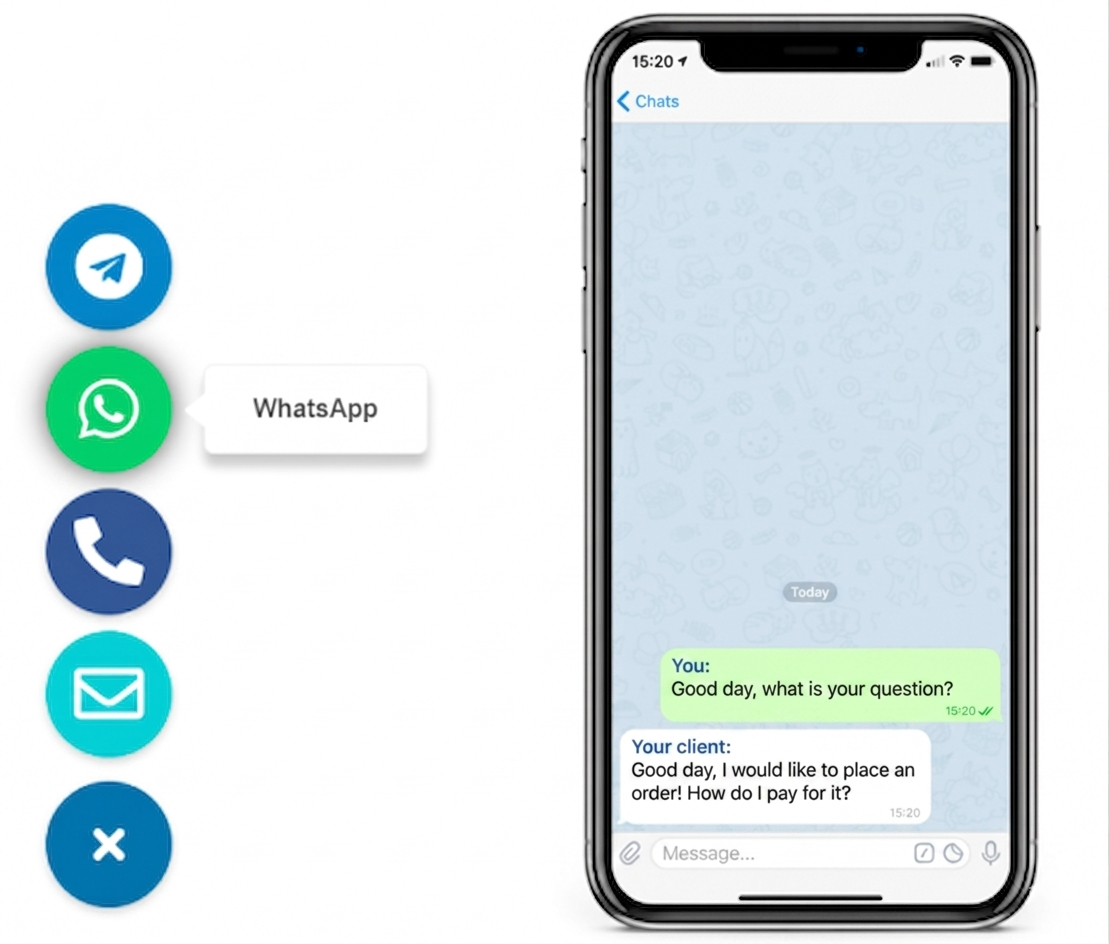
WHY THIS WORKS WELL ON SQUARESPACE
because Squarespace site owners usually need one global contact layer, not repeated page-by-page edits

You may still paste a code snippet into Squarespace, but that is not the same as building a custom integration. For most websites, the no-code part is that the button logic, icon, and destination are already prepared. Your job is mainly to install it globally and confirm the placement feels natural.
How to add a floating contact button to Squarespace in 5 practical steps
- Choose the contact action first. Decide whether the button should open WhatsApp, Telegram, a form, or one other direct contact route. Squarespace layouts work better when one floating action stays clear and specific.
- Create the button and copy the snippet. Set the label, icon, color, and destination before installation so you do not keep revisiting Squarespace design settings later.
- Add it through the global code area. Use a sitewide injection point or one global embed location instead of dropping separate code blocks into multiple pages.
- Check the floating offset against Squarespace UI. Test announcement bars, sticky headers, mobile navigation, cookie notices, and any commerce controls that already sit near the bottom of the screen.
- Publish after device testing. Confirm the button opens the right destination, stays visible while scrolling, and does not cover the primary CTA on mobile or desktop.
Platform guidance
Squarespace: treat the floating contact button as a sitewide layer. Use global code injection or a consistent global custom-code placement, then test it on both standard pages and product or booking flows.
WordPress: use a theme-level script area or lightweight snippet utility when you need similar sitewide behavior without another plugin-heavy contact stack.
Shopify: keep the button global and verify that it does not collide with cart controls, sticky buy buttons, or mobile store UI.
Wix and Webflow: the same principle applies: install globally first, then solve overlap and offset issues rather than rebuilding separate button versions page by page.
Joomla and HTML websites: place the script near the template or closing body tag so the floating behavior stays consistent across the whole site.
- Install the button globally, not inside one page section
- Check desktop pages and mobile preview separately
- Review announcement bars, sticky headers, and cookie notices
- Keep the destination limited to one clear action
- Retest after changing template spacing or mobile header behavior
For adjacent setup patterns, compare how to add a floating contact button, the broader floating chat widget guide, and the English blog.
Placement and UX guidance for Squarespace
Start in the bottom corner
Bottom-right is still the default starting point because visitors expect floating contact actions there. Move it only if a cookie prompt, mobile menu, or store UI already owns that space.
Do not compete with hero CTAs
If your Squarespace page already has a strong booking or quote CTA near the fold, the floating button should support that path, not visually override it with a bigger or louder message.
Leave mobile breathing room
Squarespace mobile layouts can include sticky nav, commerce buttons, or announcement elements. The floating button needs enough offset to stay tappable without covering those controls.
The best Squarespace floating contact button feels intentional, almost like part of the template. If it is always reachable but never blocks the content flow, the placement is probably correct.
One floating button vs a full contact widget
Choose one floating button when
- Your main goal is one obvious message-first action
- Most visitors already prefer one contact channel
- You want the cleanest Squarespace layout with the least interface noise
Choose a fuller widget when
- You need equal visibility for several channels or actions
- Your team wants messaging, email, and fallback contact choices together
- The site serves mixed visitor intent and one button feels too narrow
If the Squarespace site only needs one direct route, the simpler button usually wins. If you need broader channel choice later, compare this page with how to add messenger buttons to a website and the floating chat widget guide.
Common mistakes
- Adding the button inside one page block instead of a global Squarespace location
- Letting the button overlap the mobile menu, cookie banner, or commerce controls
- Using a label or color treatment that looks more like a popup than a contact action
- Sending the click to the wrong phone number, account, or form
- Offering one floating button when the real need is a multi-channel widget
- Publishing after desktop review only and skipping a full mobile test
Before you publish
- The button appears across the Squarespace pages where you need it
- The contact destination opens correctly on mobile and desktop
- No sticky header, banner, cookie notice, or store control overlaps it
- The label is short, clear, and consistent with the page tone
- You kept a fallback path such as a form, booking flow, or contact page where needed
Frequently asked questions about floating contact buttons for Squarespace
How do I add a floating contact button for Squarespace?
Create the button, copy the embed or script snippet, add it through Squarespace custom code, then test the offset on mobile and desktop before publishing.
Can I add a floating contact button to Squarespace without coding?
Usually yes. You still paste a snippet into the site settings, but you do not need to build custom front-end logic or edit every page manually.
Will the button work on mobile and desktop in Squarespace?
Yes, if the button is responsive and does not overlap mobile navigation, cookie notices, announcement bars, or checkout controls.
Should I use a Squarespace plugin, code injection, or a block embed?
Sitewide code injection is usually the cleanest route for a persistent floating button. A block embed can work for one page, but it is less reliable when you want global visibility.
Is one floating button better than a full contact widget on Squarespace?
One floating button is better when visitors need one obvious contact action. A fuller widget helps only when several channels deserve equal priority.
Can a Squarespace floating contact button open WhatsApp or Telegram?
Yes. The destination can open WhatsApp, Telegram, or another single contact action, as long as the final link and mobile behavior are tested before launch.