
FLOATING CHAT WIDGET FOR WEBSITE
A floating chat widget for website use is usually the fastest no-code way to keep messaging visible on every page. Add one script, connect your preferred messenger channels, place it where it stays noticeable without blocking content, and test the mobile view before you publish.

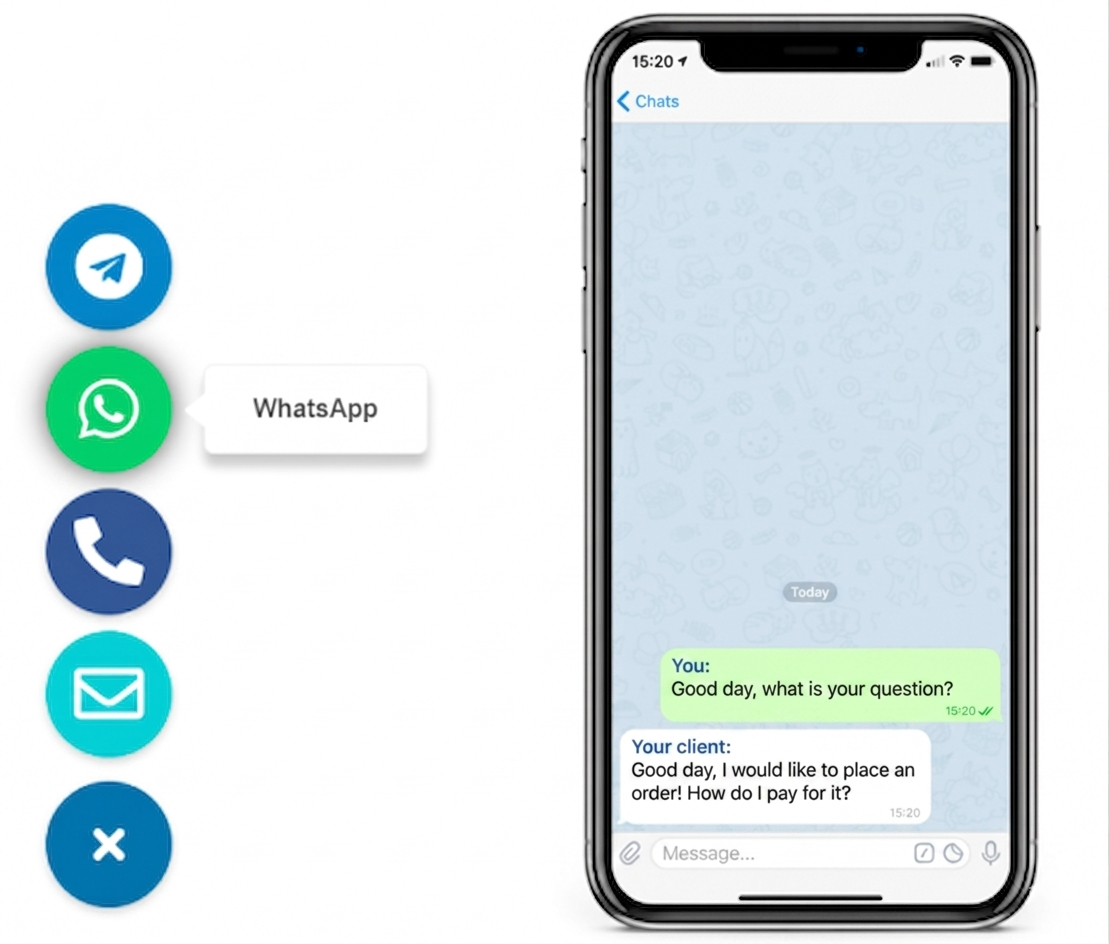
WHY A FLOATING CHAT WIDGET MATTERS
because contact options perform better when they stay visible at the moment a visitor decides to act

If your site allows a custom script, footer code field, or simple embed area, the widget can usually be installed once and managed without repeated page edits. That is why this format works well for teams that want a practical contact layer, not a custom development project.
How to add a floating chat widget in 6 practical steps
- Choose the contact goal. Decide whether the widget should start sales chats, support chats, booking enquiries, or general lead capture.
- Select the channels. Use one messenger if your audience strongly prefers it, or use a multi-channel setup when visitors commonly choose between WhatsApp and Telegram.
- Generate the widget code. Create the button, choose the icon style, label, and default behavior, then copy the script snippet.
- Install the snippet sitewide. Add it once in your global code area so the widget appears consistently instead of page by page.
- Test placement on mobile and desktop. Check the bottom corners, look for overlap with cookie notices and sticky bars, and confirm that the button remains visible but calm.
- Review the click path. Make sure each channel opens the right destination and the widget stays fast after publishing.
Platform guidance
WordPress: place the script through a header-footer code field, theme settings, or a lightweight snippet utility instead of relying on a bulky chat plugin stack.
Shopify: add the widget through theme code or a custom script area when possible, especially if you want to avoid app bloat.
Wix: use the custom code area and verify that the widget does not conflict with sticky mobile elements.
Webflow: install it in project custom code so the floating element appears across templates and collection pages.
Joomla: keep the widget outside article content and add it in the template or a sitewide custom-code position.
HTML website: add the snippet before the closing body tag and keep the rest of the layout untouched.
- Install the widget globally, not on isolated pages
- Use one script when the platform allows it
- Test the mobile offset after every placement change
- Keep the widget outside the main content editor flow
- Confirm the destination messenger opens correctly on both device types
If you want platform-specific setup for one messenger, see the WhatsApp button guide or the Telegram button guide.
Placement and UX best practices
Bottom corner first
Start with the bottom-right corner unless another sticky element already lives there. It is the most familiar position for a floating contact button.
Keep the label short
Short labels such as “Chat with us” or channel names keep the widget understandable without turning it into a large banner that steals attention from the page.
Respect mobile space
The widget should never cover product CTAs, cookie banners, checkout controls, or bottom navigation on mobile devices.
A good floating chat widget feels present but not aggressive. If visitors notice it when they need help and forget about it when they do not, the placement is usually doing its job.
Floating chat widget vs contact form
When the widget is better
- You want faster first contact
- Your visitors already use messengers daily
- The main job is to start a conversation, not collect a long brief
When a form still helps
- You need structured project details
- Visitors may want to send longer requests
- Your team replies in batches instead of live conversations
Common mistakes
- Installing the widget only on one page when the goal is sitewide visibility
- Using too many channels and turning the widget into a cluttered menu
- Letting the button cover important mobile controls
- Sending clicks to the wrong phone number or profile
- Choosing colors that look like warnings instead of contact actions
- Assuming a widget replaces all contact methods on high-consideration pages
Before you publish
- The widget opens the right messenger destination
- The position is visible on mobile and desktop
- No cookie bar, sticky CTA, or nav element overlaps it
- The label and icon are easy to understand at a glance
- You still provide a fallback contact option where needed
Frequently asked questions about floating chat widgets
What is a floating chat widget for a website?
It is a fixed contact button or compact widget that stays visible while visitors scroll. When clicked, it opens a messaging option such as WhatsApp or Telegram instead of sending users to a long form first.
Can I add a floating chat widget to my website without coding?
Yes. Most sites can use one script snippet or a simple custom-code field, so you do not need to rebuild the page layout or create a custom chat system.
Will a floating chat widget work on mobile and desktop?
Usually yes, as long as the widget is responsive and does not overlap cookie banners, sticky purchase bars, or important navigation on small screens.
Should I use a plugin, app, or one script?
If your platform supports custom code, one script is often the cleanest option. Use a plugin or app only when the platform makes script placement awkward or tightly controlled.
Is a floating chat widget better than a contact form?
It is better for fast conversations and lead capture from visitors who prefer messaging. A contact form is still useful for longer enquiries, attachments, or structured requests.
Can I offer WhatsApp and Telegram in the same widget?
Yes. A multi-channel widget can show more than one messenger so visitors can choose the contact method they already use.
Build a floating chat widget that fits the page instead of fighting it
Start with one visible, well-placed contact entry point, keep the setup simple, and give visitors a messenger they already trust. For more examples and product context, browse the YourChat blog.