
BEST NO-CODE CHAT WIDGET FOR A SMALL BUSINESS WEBSITE
A practical buying guide for owners who want faster website contact without a heavy build
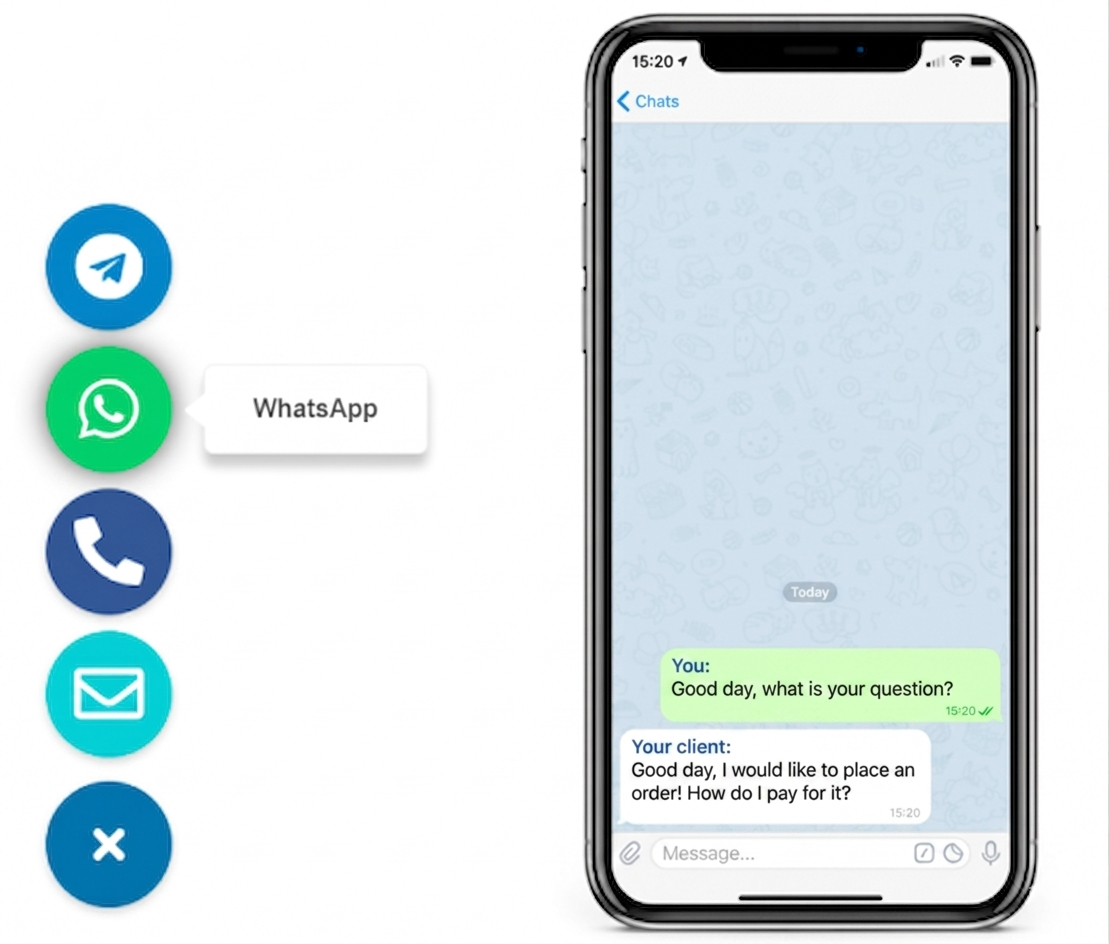
The best no-code chat widget for a small business website is one that launches fast, stays easy to click on mobile, and fits your pages without adding plugin bloat or a confusing support interface
For most small business websites, a lightweight hosted widget is the cleanest choice because you install one script, control placement centrally, and keep the contact path simple for visitors.

WHY THIS MATTERS FOR SMALL BUSINESS WEBSITES
because a cleaner contact path usually wins more clicks than a heavier support tool
Small business visitors often want one quick answer before they call, book, or leave. A simple chat widget can reduce hesitation better than a long form or a live chat tool that feels too formal for a small local brand.
The goal is not to turn your website into a help desk. The goal is to make first contact easier on the pages where people are already close to taking action.
can you do it without coding?
Yes. You usually add one script and keep the rest of the website intact

no-code does not mean low control if the widget is lightweight and easy to place
A hosted widget gives most small businesses the best balance: quick installation, centralized edits, and no need to keep rebuilding site sections every time the contact setup changes.

How to choose and add the right no-code chat widget
1. Decide which contact action matters most on the page.
2. Choose a widget that adds with one script or embed snippet.
3. Connect the chat destination and keep the first click obvious.
4. Place the widget where it stays visible without covering content.
5. Test the final behavior on desktop and mobile.
6. Add it first to your homepage, service pages, or contact page before wider rollout.
2. Choose a widget that adds with one script or embed snippet.
3. Connect the chat destination and keep the first click obvious.
4. Place the widget where it stays visible without covering content.
5. Test the final behavior on desktop and mobile.
6. Add it first to your homepage, service pages, or contact page before wider rollout.

Fast to launch
A small business usually needs an answer this week, not a custom development cycle next month.

Easy to place
The best no-code chat widget should not force layout work every time you change a page section.

Mobile-ready
Most first clicks happen on smaller screens, so position and spacing matter more than fancy effects.

Works across platforms
A script-based widget usually works on WordPress, Shopify, Wix, Webflow, Joomla, and plain HTML sites without a custom build.
WHAT THIS GUIDE HELPS YOU DECIDE
The best widget is the one that matches your contact flow, not the biggest feature list
A small business usually needs a practical website contact layer, not a complicated support stack. That is why placement, setup simplicity, and platform fit matter more than a long feature comparison.
If you also want a messenger-first setup guide, see How to add messenger buttons to a website. For related long-form articles, browse the YourChat blog.

PLACEMENT AND UX GUIDANCE
Where the widget should appear to help, not distract
The bottom-right corner is still the default for most websites, but the better rule is to keep the widget obvious, easy to tap, and clear of other sticky elements.
1
1
5

Keep the click path short and obvious
objection handling
A widget is still useful even if some visitors prefer forms or phone calls
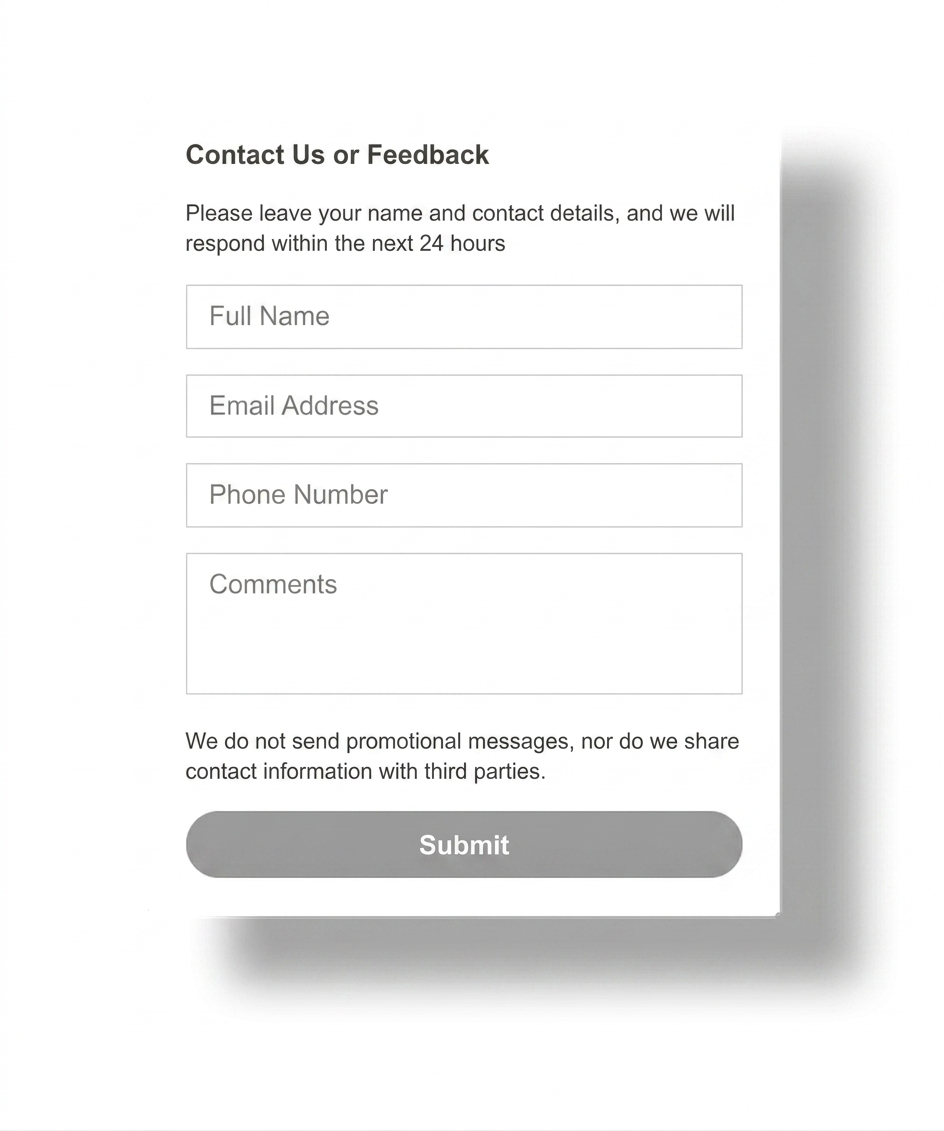
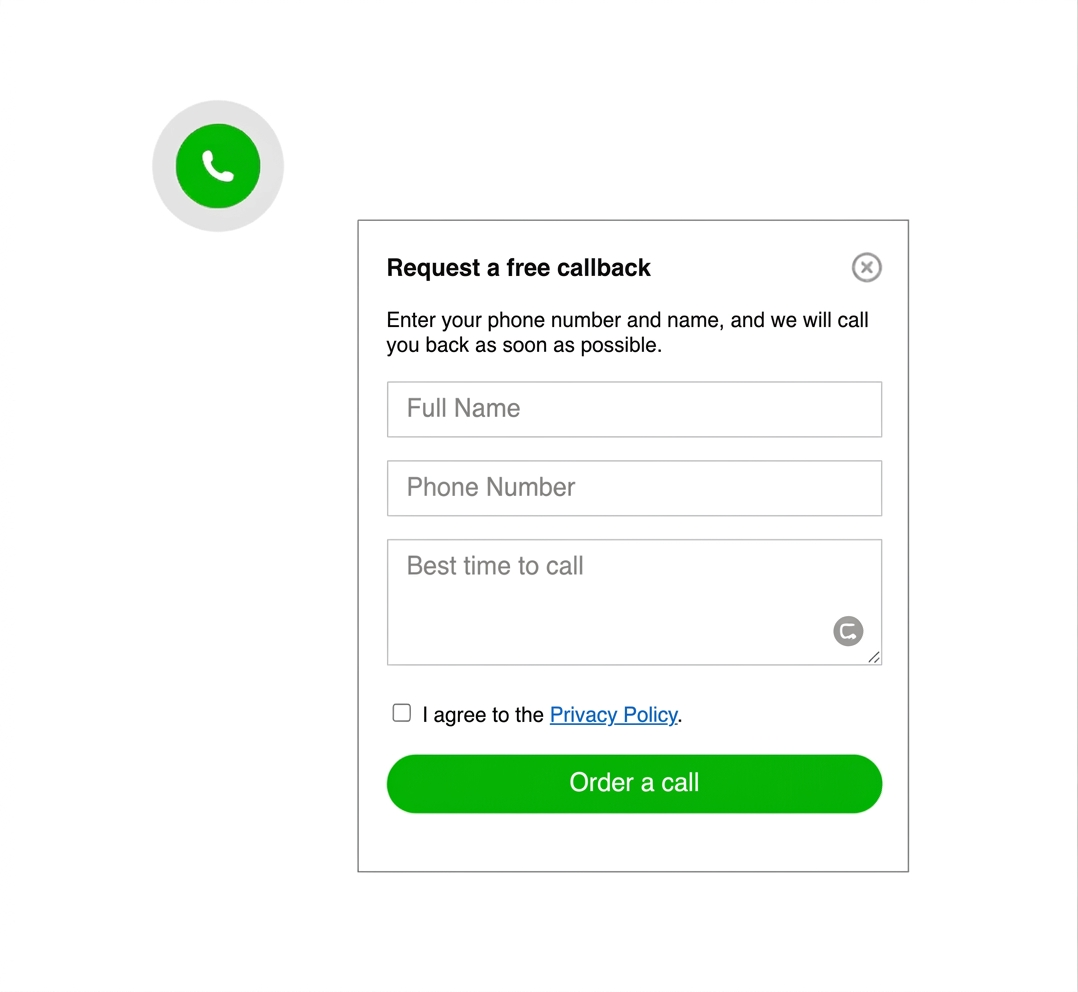
Not every visitor wants to start in chat. That is fine. The widget should act as a faster option, not as a replacement for every other contact path on the website.
This is especially helpful on service pages where a visitor may want a quick answer first, then decide whether to call, book, or send a longer message.
common mistakes to avoid
Do not let the widget fight the rest of the page
keep it visible, but never intrusive
The biggest mistake is usually not technical. It is weak placement. If the widget blocks content, feels random on mobile, or opens the wrong contact route, people stop trusting it and stop clicking.