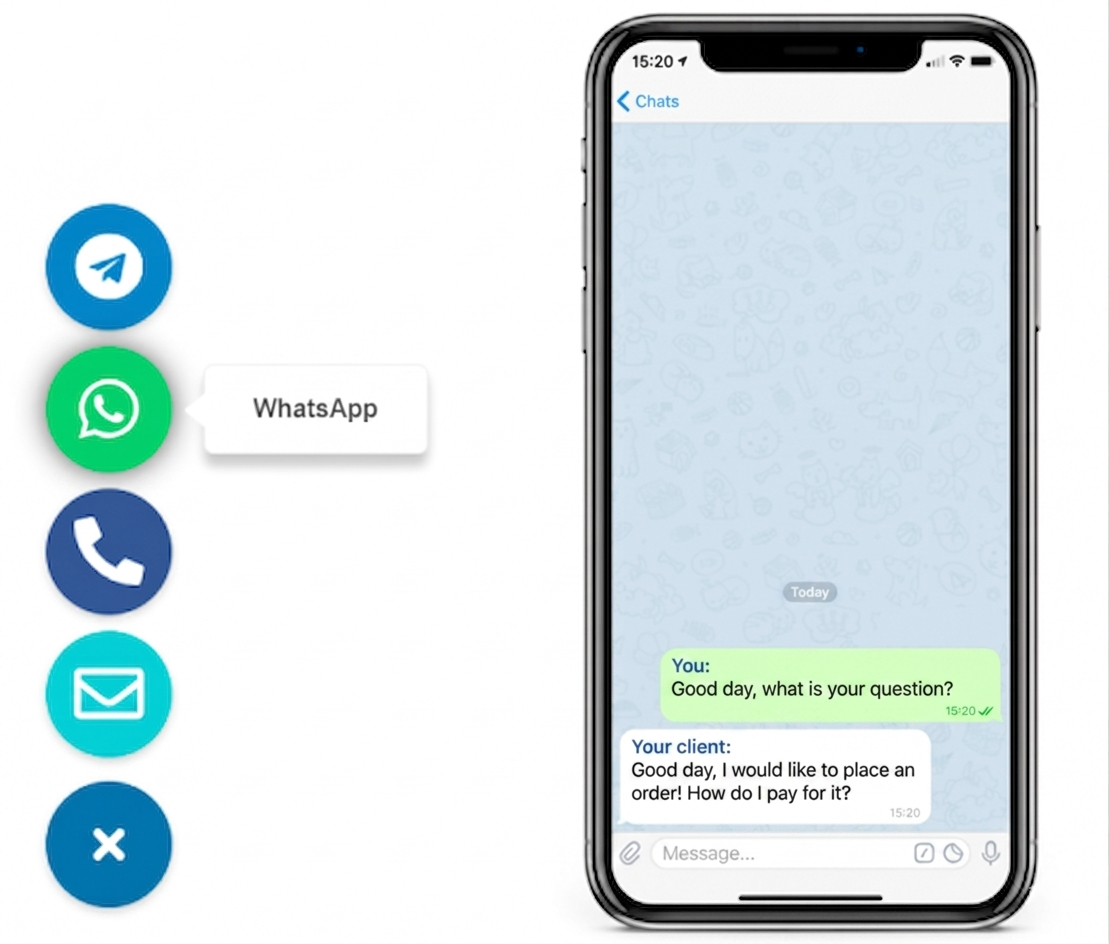
HOW TO ADD MESSENGER BUTTONS WITHOUT SLOWING DOWN YOUR WEBSITE

A lighter contact layer that keeps page speed and UX under control

To add messenger buttons without slowing your website, use one lightweight script or widget, keep the number of channels limited, and place the launcher once at the site level instead of stacking multiple plugins, embeds, or duplicate floating tools.

This guide is for website owners, small businesses, agencies, and no-code teams that want faster messaging contact without turning a simple website into a heavy support interface.
Messenger buttons added with one lightweight website launcher
Messenger button launcher with a few simple contact options

WHY THIS MATTERS FOR PAGE SPEED AND CONVERSIONS

because a faster contact path should not come with slower page behavior

Messenger buttons help visitors start a conversation quickly, but a messy implementation can add friction instead of removing it. Heavy plugins, duplicate scripts, and too many floating elements make the page feel crowded and can undermine the clean experience you wanted.

If you want the broader setup process first, read How to add messenger buttons to a website. If your main concern is lighter implementation, compare this page with Lightweight Messenger Widget for Website Owners.

NO-CODE SETUP
Yes, you can do this without custom development
Single script snippet for messenger buttons on a website
one site-level script is usually enough

Most websites can add messenger buttons through one shared custom code field, footer injection area, or theme setting. That is usually lighter than installing one plugin per channel or pasting a different embed on each page.

Compact messenger buttons grouped in one launcher
STEP BY STEP

How to add messenger buttons without slowing your site

  1. Define the real contact goal, such as quick sales questions, appointment enquiries, or simple customer messages.
  2. Choose one lightweight widget or script that can hold all the messenger options you actually need.
  3. Keep the launcher global, so the buttons load once through a shared footer, custom code area, or template include.
  4. Limit the visible choices to one primary channel and at most two secondary channels.
  5. Place the widget on high-intent pages first and test how it behaves next to sticky bars, cookie notices, and forms.
  6. Remove duplicate plugins, unused badges, or extra chat tools that overlap with the same contact purpose.
One script icon for faster messenger button setup

One insertion point

Load the buttons from one shared place instead of repeating code across many pages.
Simple channel choice icon for messenger buttons

Tighter channel list

Fewer choices usually help visitors decide faster and keep the widget visually lighter.
Mobile-friendly icon for messenger button placement

Mobile-first spacing

Many first clicks happen on phones, so spacing and overlap must work there before desktop polish.
Low-overhead icon for messenger button maintenance

Less maintenance

A single launcher is easier to maintain than several channel-specific tools with separate settings.

Platform guidance for a lighter messenger button setup

Use the lightest insertion method your platform already supports. The goal is one clean site-level load, not another stack of marketing or support tools.

WordPress

Prefer a theme-level custom code field or a simple header-footer insertion area before adding several plugins.

Shopify

Place one script in the theme or custom code area so the launcher stays consistent across templates.

Wix

Use the built-in custom code settings and recheck mobile overlap because fixed elements can pile up quickly.

Webflow

Add the snippet in project custom code or before the closing body tag so the buttons load once for the whole site.

Joomla

Use one template injection point or shared custom HTML position instead of several separate extensions.

HTML sites

Insert the script in the shared footer or common template include so every important page uses the same launcher.

If your setup is channel-specific, compare with How to add a WhatsApp button to a website. For more examples and short supporting articles, browse the English blog.

PLACEMENT AND UX

A light setup still needs disciplined placement

Place the launcher near the lower edge of the screen, but leave room for cookie notices, sticky CTA bars, checkout controls, and mobile navigation. A cleaner position often matters more than adding another messenger option.
Roll out first on the homepage, pricing or service pages, and the contact page. Those pages usually have stronger messaging intent, so you can validate the setup before expanding it everywhere.
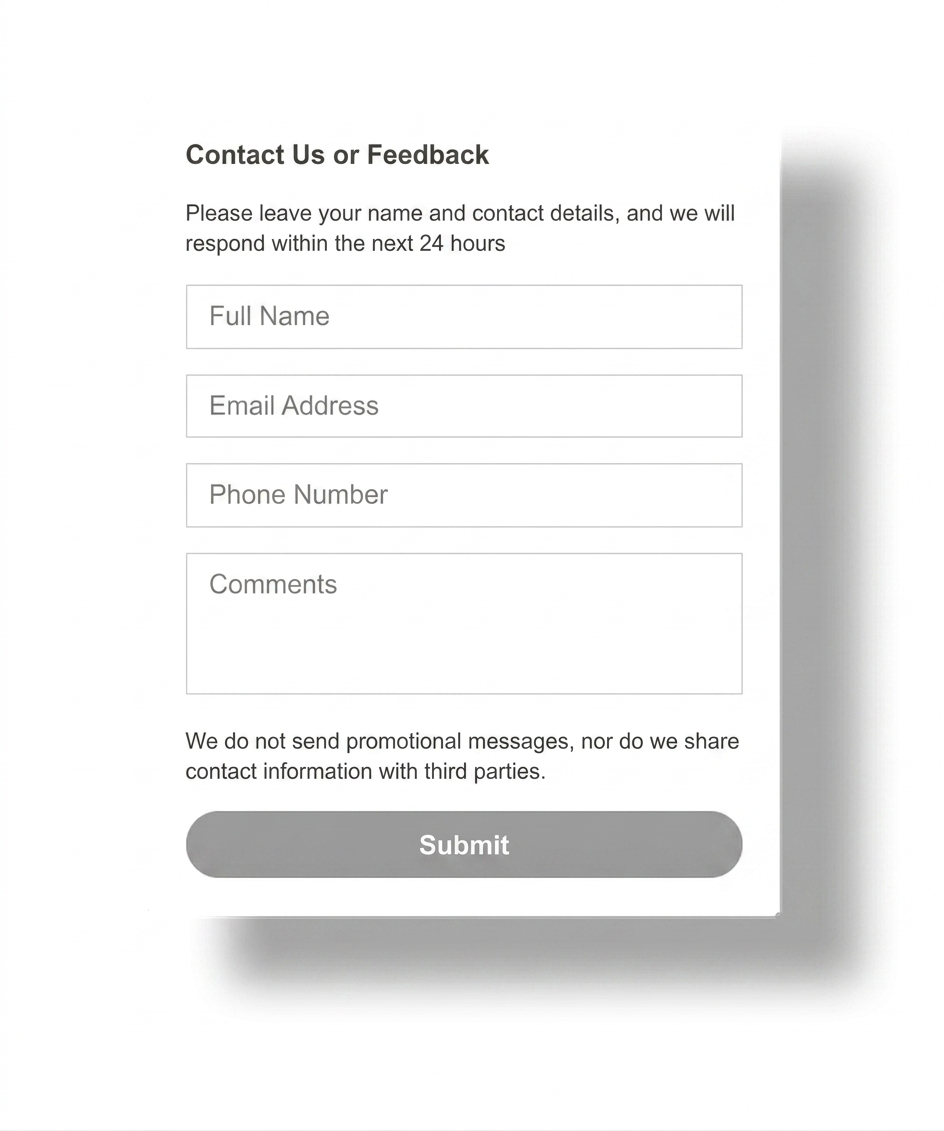
Placement guidance for messenger buttons on desktop and mobile

one lightweight launcher vs multiple plugins

One multi-button launcher is usually the safer choice when you want a clean page and simpler maintenance. Multiple plugins or embeds can make sense only when the channels serve very different purposes and you can still keep the page controlled.

Option 1

ONE

single launcher

Best when you want lighter setup, one visual control point, and a clearer messaging path for visitors.

Option 3

MANY

stacked tools

highest drag
Several plugins, badges, and separate bubbles usually add more interface noise and more maintenance than most business websites need.
COMMON MISTAKES

The setup is small, but the mistakes are easy to repeat

Most website slowdowns in this category come from repetition, not from the idea of messenger buttons itself. The problem is usually too many scripts, too many channels, or too many floating elements competing for the same space.
  • Do not load separate plugins for each messenger if one launcher can cover the same use case.
  • Do not place duplicate buttons in the header, sidebar, footer, and floating corner at the same time.
  • Do not show channels that nobody on your team actively monitors.
  • Do not skip testing on a real phone after the final placement decision.
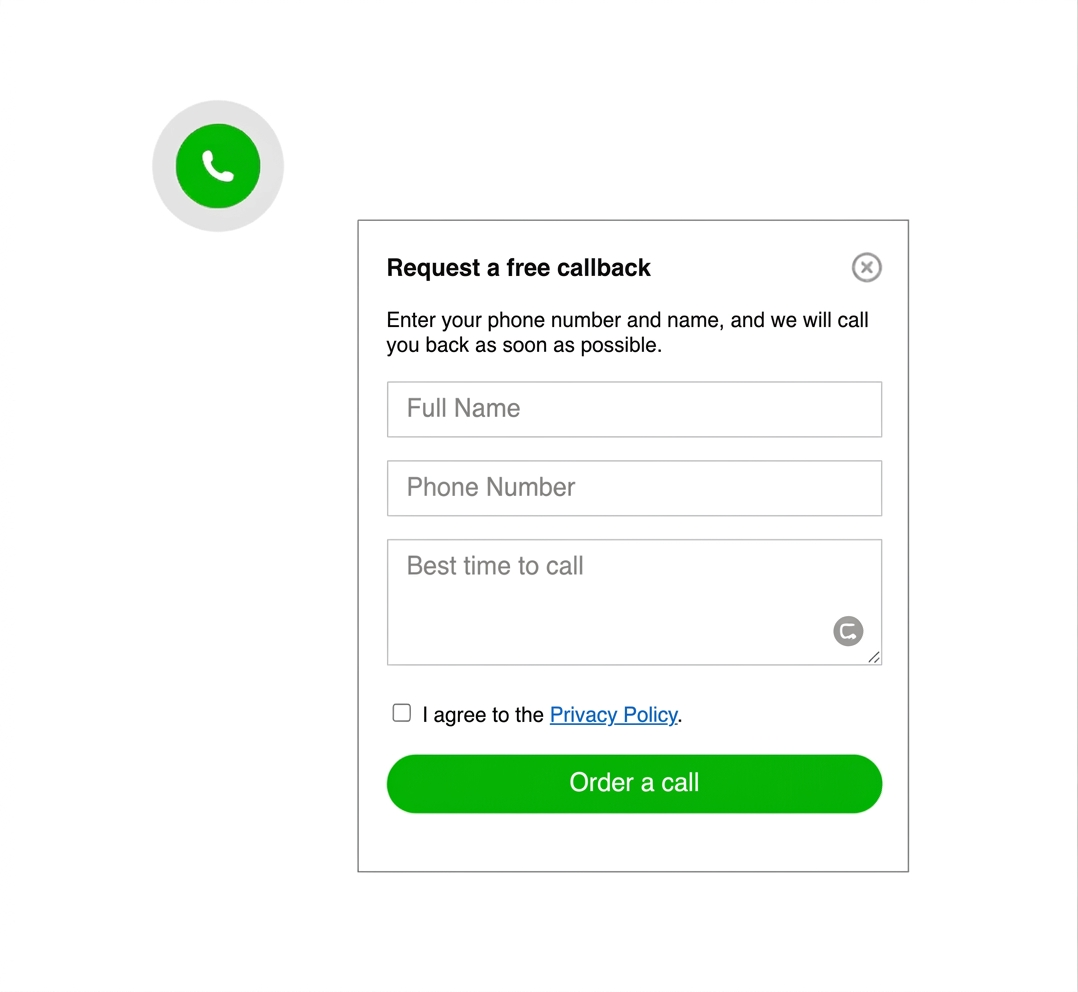
Common implementation mistakes for website messenger buttons
QUICK CHECKLIST

Before publishing, confirm the buttons stay light in both technical setup and visitor experience.

  • One shared script or widget loads the messenger buttons
  • Only the most useful channels are visible
  • High-intent pages are covered first
  • Mobile spacing is tested on a real device
  • No duplicate chat plugin or floating contact tool is left behind

Frequently asked questions about adding messenger buttons without slowing a website

How can I add messenger buttons without slowing my website?

Use one lightweight script or widget instead of stacking separate plugins, duplicate embeds, or several floating tools. Keep the number of channels tight and load the buttons once at the site level.

Can I do this without coding?

Yes. Most websites can add messenger buttons through one custom code field, footer injection area, theme setting, or platform script option without custom development.

Will messenger buttons still work on mobile and desktop?

Yes, as long as you test spacing and overlap on both screen sizes. The launcher should stay easy to tap on mobile and should not cover sticky bars, forms, or navigation.

Should I use a script, plugin, or app to add messenger buttons?

Use the lightest method your platform supports. A single script is usually the cleanest path, while plugins or apps mainly make sense when the platform strongly depends on them.

Is one multi-button launcher better than several separate chat plugins?

Usually yes. One launcher is easier to control, lighter to maintain, and less likely to create visual clutter than several separate chat tools loaded on the same page.

How many messenger options should I show?

Usually one primary route and up to two secondary routes are enough. Too many options can slow decision-making and make the contact layer feel heavier.

Need more setup reading after this page? Continue with the messenger buttons guide, compare the WhatsApp setup guide, or browse the English blog guides.

Messenger buttons should make contact faster, not the site heavier

If your platform lets you add one script, custom code block, or shared footer snippet, you can usually add messenger buttons cleanly without turning the website into a stack of overlapping plugins and floating tools.