WhatsApp Button for Website
A WhatsApp button for website visitors should open the right chat fast, stay visible without covering content, and work cleanly on mobile and desktop. The easiest path is usually a hosted floating button or widget that you place once, then adjust without rebuilding the page.
This page is for business owners, freelancers, agencies, and site managers who want a simpler contact route than a heavy live chat box. You will see which setup fits your site, where to place it, and what to avoid before publishing.

Quick answer
- Use one clear WhatsApp entry point, not several competing buttons.
- Keep the button visible near the lower edge of the screen.
- Test real mobile spacing before you publish.
- Prefer a script-based widget when your platform allows custom code.
Why this matters
Can you add a WhatsApp button without coding?
How to set up a WhatsApp button for website visitors
- Choose the WhatsApp destination you want visitors to reach first.
- Create the button or widget and keep the visual choice simple.
- Pick a position that stays visible but does not cover the main CTA.
- Place the script or code snippet once in the site-wide template or code area.
- Check both mobile and desktop behavior on real pages, not just in the editor.
- Publish only after confirming the button opens the intended chat route every time.
Who this setup suits best
- Small business sites that need quick pre-sale questions.
- Freelancers and agencies that want faster lead contact.
- Local service pages where visitors prefer direct messaging.
- Teams that want a lighter contact layer than full live chat.
If your site needs more than one channel, compare this page with How to Add Messenger Buttons to Website before you decide on one-button or multi-channel placement.
Platform-specific guidance
- WordPress: one snippet is usually cleaner than several plugins.
- Shopify and Wix: test high-intent pages first.
- Webflow and Joomla: keep the button outside the content editor flow.
- HTML site: use one script and avoid repeating the button manually.
- All platforms: confirm spacing on a real phone.
Placement and UX guidance
1
Make WhatsApp the main action if that is the channel you actually want to receive first.
2
Leave space for cookie notices, sticky buy bars, and mobile browser controls.
3
Homepage, service pages, and contact pages are usually the strongest places to test first.
Three common ways to add a WhatsApp button
Option 1
basic manual setup
Option 2
recommended setup
Option 3
depends on platform
WhatsApp button vs live chat
| When it fits | WhatsApp button | Live chat widget |
|---|---|---|
| Fast lead contact | Strong choice when visitors already use WhatsApp and want direct messaging. | Can add friction if the visitor only wants one simple question answered. |
| Support workflow | Lighter option with a narrower job: start the chat fast. | Better when you need agents, routing, or a support queue. |
| Site complexity | Usually easier to place and maintain on small business sites. | Can make sense on larger support-heavy websites. |
Common mistakes
Too many contact choices
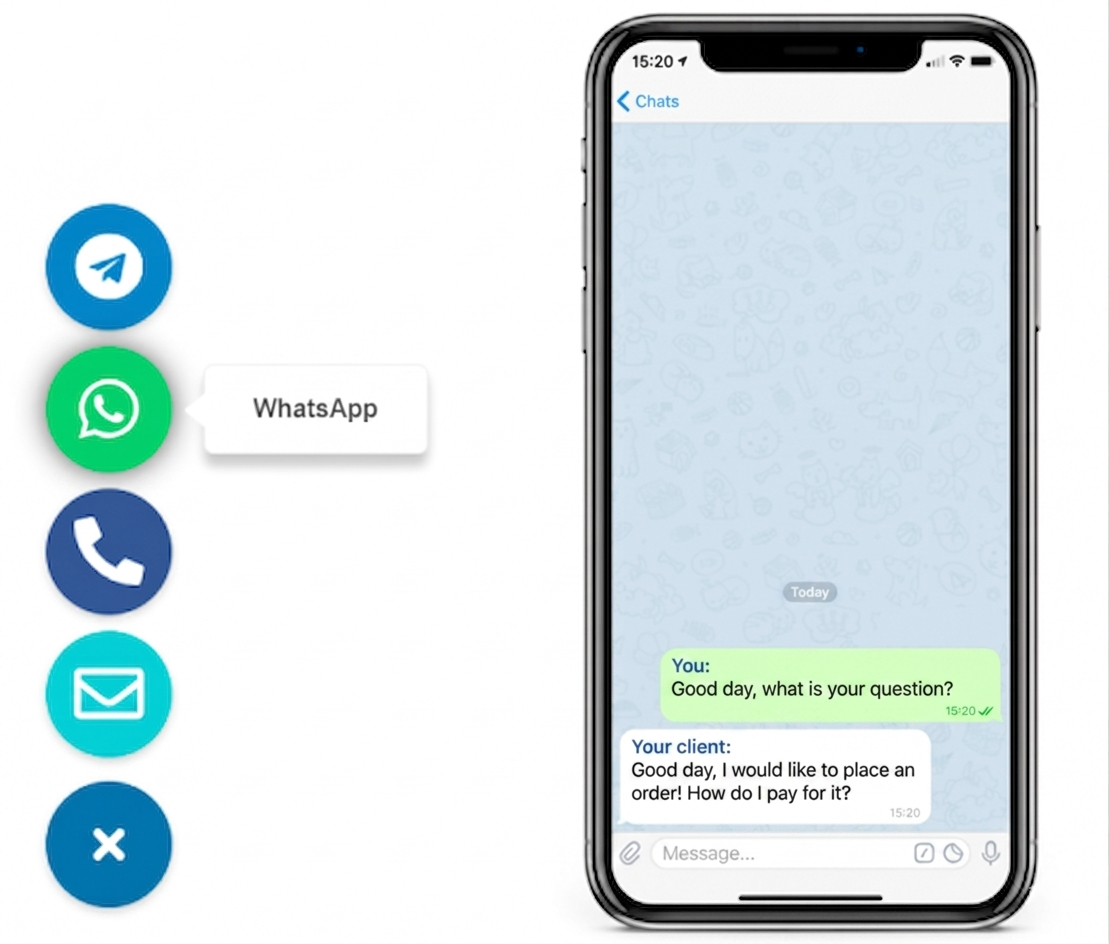
Visitors hesitate when WhatsApp, Telegram, Viber, form, callback, and email are all fighting for equal attention.
Wrong mobile spacing
A floating button can clash with cookie notices, sticky bars, and bottom browser controls if you only test desktop.
Weak destination logic
The button should open the intended WhatsApp route every time. Broken or confusing routing kills trust quickly.
Treating it like decoration
The button should support conversion, not just fill empty space in the corner of the page.
- The button opens the correct WhatsApp destination.
- The main CTA and the floating button do not compete visually.
- Mobile spacing is clean on real devices.
- The setup method matches the platform you actually use.
- A fallback contact route still exists for visitors who do not want messaging.
Frequently asked questions about WhatsApp button for website setup
What is the best WhatsApp button for website visitors?
The best WhatsApp button for website use is one that opens the right WhatsApp destination fast, stays visible without blocking content, and works cleanly on both mobile and desktop.
Can I add a WhatsApp button to my website without coding?
Yes. A hosted widget or script-based setup is usually the simplest no-code route because you place one snippet and adjust the button outside the page layout.
Will a WhatsApp button work on mobile and desktop?
It should, but you need to test both views. A button that looks fine on desktop can still overlap mobile sticky bars, cookie notices, or product CTAs.
Should I use a plugin, app, or script for a WhatsApp button?
If your platform allows custom code, a script-based widget is usually cleaner. Use a plugin or app only when your CMS strongly prefers that path.
Is a WhatsApp button better than live chat?
A WhatsApp button is often better when you want a lighter contact flow and your audience already uses WhatsApp. Live chat is stronger when you need agents, routing, or a full support workflow.
Where should I place a WhatsApp button on a website?
The bottom-right corner is the most common default, but the right placement is whichever position stays visible without hiding key content or competing with your main CTA.
Need adjacent reading after this page? Compare the WhatsApp setup guide, the floating chat widget guide, or the broader YourChat blog.