
WHATSAPP BUTTON FOR WIX WITHOUT CODING
Yes, you can add a WhatsApp button for Wix without coding by using one hosted widget or embed block, connecting the right number, and checking placement on both mobile and desktop

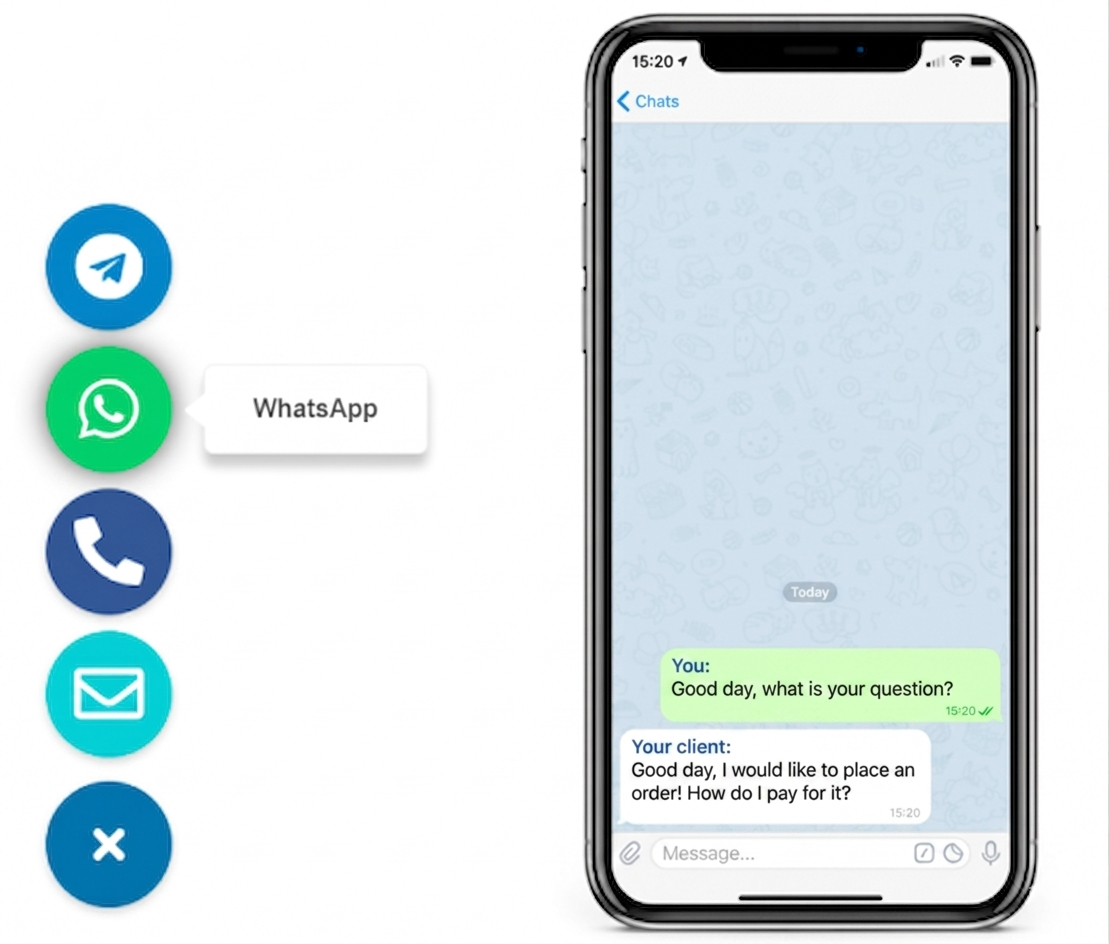
Why add a WhatsApp button to Wix
because a visible chat action can remove friction on service, booking, and product pages
Can you do it on Wix without coding?
Step 1: choose the WhatsApp destination
Step 2: pick the Wix insertion method
Step 3: set the floating position
Step 4: preview mobile and desktop
Step 5: publish and keep it maintainable
Need a cleaner route?
Wix setup first, with platform notes that help you avoid rework
- Wix Editor: good for quick page-level buttons and simple contact sections.
- Wix Studio: better when responsive behavior needs more careful control across breakpoints.
- Embed or custom code area: useful when you want one floating button behavior instead of rebuilding the same element repeatedly.
- Other platforms: the same script-first logic often works on WordPress, Shopify, Webflow, Joomla, and plain HTML sites when custom code or embed areas are available.
Placement and UX best practices
Keep the button easy to find, but never let it compete with Wix navigation or booking actions
Bottom-right by default
Protect the viewport
Set the right expectation
Wix button element vs floating WhatsApp widget
Choose a standard Wix button when
- The page already has a clear contact section.
- You only need WhatsApp on one or two pages.
- You want the action styled like the rest of the section.
Choose a floating widget when
- You want persistent visibility during scrolling.
- Your contact CTA needs to work across several pages.
- You want a cleaner no-code setup with fewer repeated edits.
Common mistakes on Wix
- Adding multiple WhatsApp buttons with different numbers or different message flows.
- Letting the floating button cover a mobile menu, booking CTA, or cookie banner.
- Publishing desktop-first and forgetting to test the click path on an actual phone.
- Using vague anchor text instead of a direct label that tells people what happens next.
- Treating WhatsApp as the only option when some visitors still prefer a form or email route.
Quick checklist before you publish
- Your WhatsApp number is correct and connected to the intended business flow.
- The button is visible on the Wix pages that actually attract leads.
- The mobile preview shows no overlap with sticky UI or cookie notices.
- The click opens the expected WhatsApp route on both desktop and mobile.
- You still keep a fallback contact option for people who do not use WhatsApp.
Frequently asked questions about Wix WhatsApp buttons
How do I add a WhatsApp button for Wix without coding?
Use a hosted WhatsApp widget or embed block, connect your WhatsApp number, place it in a visible corner, and publish the page after checking the mobile preview.
What is the cleanest no-code setup for a WhatsApp button on Wix?
The cleanest setup is usually a single floating widget added once through Wix custom code or an embed area, because it stays consistent across pages and is easier to maintain than separate manual buttons.
Will a Wix WhatsApp button work on mobile and desktop?
Yes, if you test both layouts. The button should stay visible, avoid overlapping sticky bars or cookie notices, and open the correct WhatsApp route on a phone.
Should I use a Wix button element or a floating WhatsApp widget?
Use a regular Wix button when WhatsApp is only one of several page actions. Use a floating widget when fast chat is a primary conversion path and you want the action visible while people scroll.
Do I need Velo to add a WhatsApp button on Wix?
No. Most businesses can do it without Velo by using Wix settings, an embed block, or a hosted widget script that does not require hand-written logic.
Is a WhatsApp button better than a Wix contact form?
They solve different problems. A WhatsApp button is better for quick pre-sales questions, while a contact form remains useful for longer requests, files, and structured lead details.