
WHATSAPP BUTTON FOR WORDPRESS WITHOUT A PLUGIN
A clean WordPress setup that does not depend on a heavy plugin
Yes, you can add a WhatsApp button to WordPress without a plugin by placing one script, choosing the right floating position, and testing the result on mobile and desktop
This guide is for site owners, agencies, and small businesses that want a faster contact path without rebuilding the theme or cluttering WordPress with another plugin.

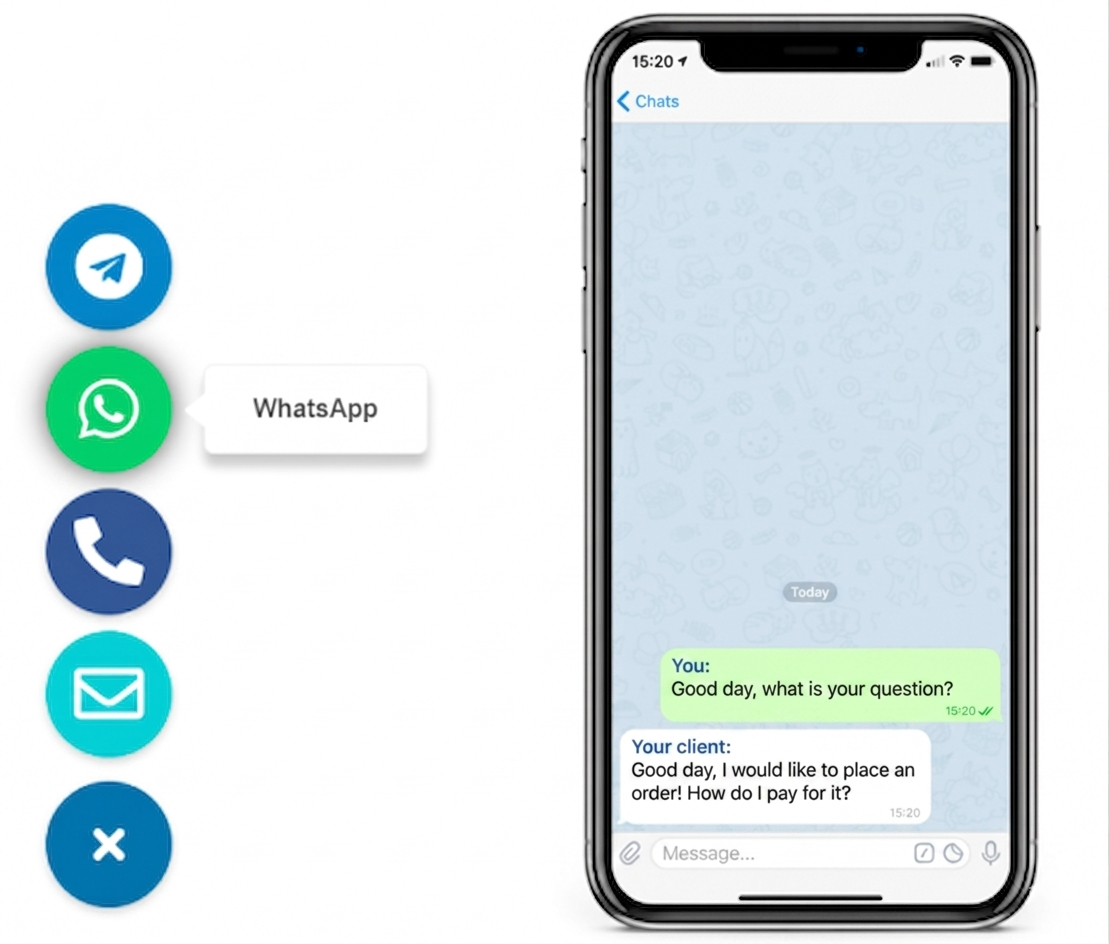
WHY ADD A WHATSAPP BUTTON TO WORDPRESS
because WordPress sites often need a faster contact path than forms alone
A WhatsApp button removes friction from service pages, product pages, and contact pages. Instead of waiting for a form reply, visitors can message you in a channel they already use every day.
simple setup path
You do not need another WordPress plugin to launch it

add one script once, then control the button outside the editor
That is the cleanest way to keep WordPress lighter. Your theme and content stay intact while the contact layer is managed separately.

How to add a WhatsApp button to WordPress in five practical steps
Create the widget, connect your WhatsApp destination, choose the floating position, and copy the generated script.
Then place that script in your WordPress theme, header-footer field, or snippet manager, publish once, and test the button on both desktop and mobile.
Then place that script in your WordPress theme, header-footer field, or snippet manager, publish once, and test the button on both desktop and mobile.

Step 1: connect the right number
Use the WhatsApp destination that should receive real sales or support enquiries, not a temporary test number you will forget to replace.

Step 2: choose a clean position
A good WordPress WhatsApp button should stay visible without covering cookie notices, sticky headers, coupon bars, or add-to-cart controls.

Step 3: test both screen sizes
Check the final position on both screen sizes because a button that looks fine on desktop can still clash with mobile navigation or consent bars.

Step 4 and 5: publish and keep it maintainable
If your WordPress setup allows custom code or a header-footer field, this route is usually lighter than adding another dedicated plugin just for one floating contact action.
WHAT THIS PAGE COVERS
WordPress setup, plugin tradeoffs, and UX decisions that affect clicks
The real result depends on the contact flow, placement, visibility, and whether the visitor reaches the right WhatsApp destination with as little friction as possible.

PLACEMENT AND BEHAVIOR
Where the button should live on a WordPress page
The bottom-right corner is usually the strongest default, but the real rule is simpler: keep the button visible, do not hide key content, and make sure it behaves correctly on mobile.
1
1
5

Keep the click path short and obvious
extra lead capture layer
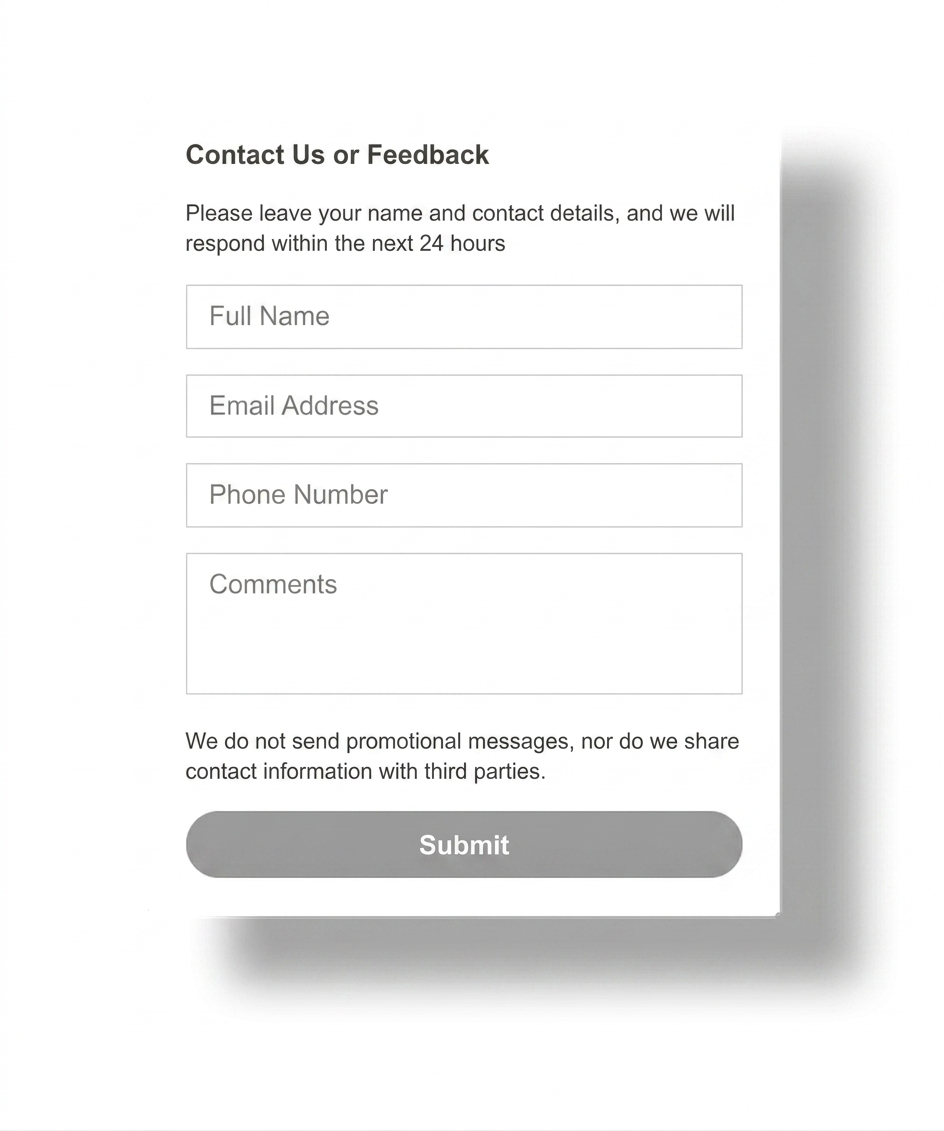
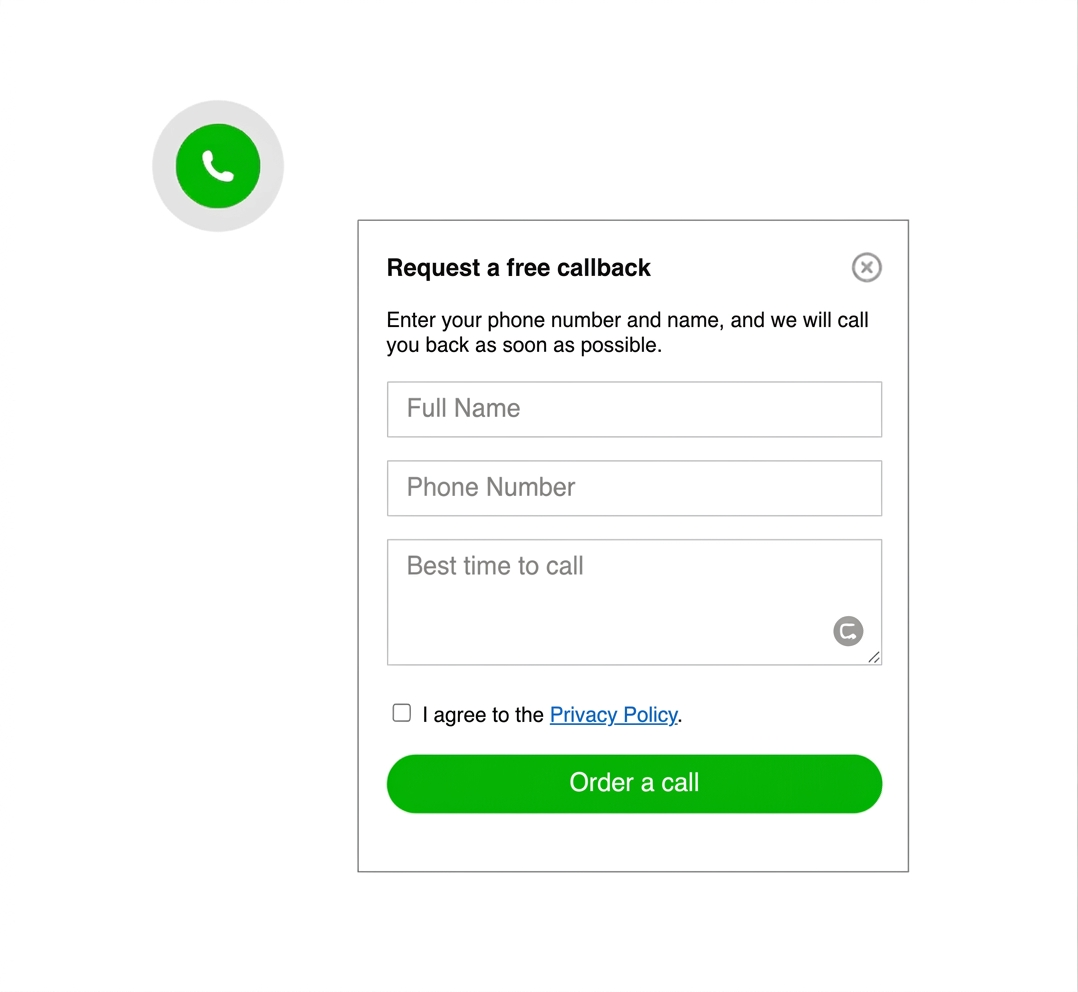
Keep a fallback for visitors who do not use WhatsApp
Not every WordPress visitor wants to open a messenger. A secondary contact form keeps the page useful for email-first leads and longer enquiries.
This is especially useful on service pages where users may want to explain their case in more detail before starting a chat.
common mistakes to avoid
Do not let the button fight WordPress UI
keep it visible, but never intrusive
The most common mistakes are poor placement, plugin conflicts, and forgetting to test the final click path on a phone. If the button blocks content, jumps on mobile, or opens the wrong contact route, people lose trust and stop clicking.